
מָבוֹא
This manual provides detailed instructions for the setup, operation, and maintenance of your Hyperkin Knight Premium Controller. Designed for use with PlayStation 3 (PS3), PC, and Mac systems, this controller offers a versatile gaming experience with its ergonomic design and responsive controls. Please read this manual thoroughly before using the product to ensure optimal performance and longevity.
תכונות המוצר
- ג'ויסטיקים אנלוגיים כפולים: Two wide-spectrum analog joysticks for precise control.
- Pressure-Sensitive D-Pad: An eight-way directional pad with pressure sensitivity.
- Pressure-Sensitive Buttons: Four shoulder buttons and four face buttons with pressure sensitivity for nuanced input.
- כפוי משוב: Integrated force feedback for immersive gaming experiences.
- כפתור בית: Dedicated button for system menu access.
- כבל ארוך: A 6-foot (1.8 meter) cable for flexible positioning.
- תאימות מרובת פלטפורמות: Compatible with all PS3 models, as well as PC and Mac via USB.
תוכן החבילה
- Hyperkin Knight Premium Controller (White)
- Integrated USB Cable (6 ft.)
הוראות התקנה
Connecting to PlayStation 3 (PS3)
- Ensure your PS3 console is powered off or in standby mode.
- Locate an available USB port on your PS3 console.
- Plug the USB connector of the Hyperkin Knight Controller into the USB port on your PS3.
- Power on your PS3 console. The controller should be automatically recognized and assigned a player number.
- If the controller does not respond, try a different USB port or restart the console.
מתחבר ל-PC/Mac
- Locate an available USB port on your PC or Mac computer.
- Plug the USB connector of the Hyperkin Knight Controller into the USB port.
- Your operating system (Windows, macOS) should automatically detect and install the necessary drivers. This process may take a few moments.
- Once installed, the controller will be ready for use with compatible games and applications. You may need to configure controller settings within individual games or system preferences.
- פֶּתֶק: Functionality may vary depending on the operating system and specific game titles.
הוראות הפעלה
The Hyperkin Knight Premium Controller features a standard layout for intuitive gameplay.
פריסת בקר

תמונה: למעלה view of the Hyperkin Knight Premium Controller, showing the D-pad, analog sticks, face buttons, and central buttons.
- D-Pad (משטח כיווני): Located on the left, used for directional input.
- סטיק אנלוגי שמאלי: Below the D-Pad, for precise movement and camera control.
- סטיק אנלוגי ימני: On the right side, typically for camera control or aiming.
- כפתורי פנים (משולש, עיגול, צלב, ריבוע): On the right, used for actions within games.
- כפתורי כתף (L1, L2, R1, R2): Located on the top edge of the controller, used for various in-game functions.
- לחצן SELECT: Typically used for menu access or specific game functions.
- כפתור התחל: Typically used for pausing games or confirming selections.
- כפתור בית: Central button to access the PS3 XMB (CrossMediaBar) or system menus on PC/Mac.
כוח משוב
The controller features force feedback (rumble) functionality, which provides tactile sensations during gameplay, enhancing immersion. This feature is automatically enabled when supported by the game and system. If you wish to disable it, check your game's or system's controller settings.
תַחזוּקָה
- ניקוי: השתמש במטלית רכה ויבשה כדי לנגב את הבקר. במקרה של לכלוך עיקש, נגבו מעטampשטפו את המטלית במים. הימנעו משימוש בכימיקלים חזקים או בחומרי ניקוי שוחקים.
- אִחסוּן: Store the controller in a cool, dry place away from direct sunlight and extreme temperatures. Avoid wrapping the cable too tightly to prevent damage.
- טיפול בכבלים: Do not pull the controller by its cable. Always grasp the USB connector when plugging or unplugging.
פתרון בעיות
הבקר לא מגיב
- בדוק חיבור: Ensure the USB cable is securely plugged into both the controller and the console/computer.
- נסה יציאת USB אחרת: Connect the controller to another USB port on your system.
- הפעל מחדש את המערכת: Power cycle your PS3, PC, or Mac.
- Driver Check (PC/Mac): On PC, check Device Manager to see if the controller is recognized and if there are any driver issues. On Mac, check System Information > USB.
Incorrect Button Mapping or Limited Functionality
- הגדרות משחק: Many games allow for custom controller mapping. Check the in-game settings for controller configuration.
- System Settings (PC/Mac): For PC, some games or emulators may require specific controller configurations or third-party software. For Mac, check System Preferences > Game Controllers (if available) or specific application settings.
- תאימות PS3: While compatible with all PS3 models, some older games or specific PS3 system software versions might have unique controller handling. Ensure your PS3 system software is up to date.
Force Feedback Not Working
- תמיכה במשחק: Verify that the game you are playing supports force feedback.
- הגדרות במשחק: Check the game's options menu to ensure force feedback (rumble) is enabled.
- הגדרות מערכת: On PC, ensure rumble is enabled in your controller settings.
מפרטים
| מספר דגם | M07213-WH |
| תְאִימוּת | PlayStation 3, PC, Mac (via USB) |
| אורך כבל | 6 רגל (כ-1.8 מטרים) |
| סוג קלט | Pressure-sensitive buttons and D-pad, dual analog joysticks |
| מָשׁוֹב | Force Feedback (Rumble) |
| מידות | 2.99 x 7.99 x 7.01 אינץ' (כ-7.6 x 20.3 x 17.8 ס"מ) |
| מִשׁקָל | 12.5 אונקיות (כ-354 גרם) |
| יַצרָן | היפרקין בע"מ |
אחריות ותמיכה
For warranty information and technical support, please refer to the official Hyperkin webאתר או צרו קשר ישירות עם שירות הלקוחות שלהם. שמרו את קבלת הרכישה כהוכחת קנייה עבור כל תביעת אחריות.
יַצרָן: היפרקין בע"מ
Webאֲתַר: www.hyperkin.com (אנא בקרו באתר הרשמי webאתר לקבלת מידע התמיכה העדכני ביותר.)
המוצר נגמרview תמונות
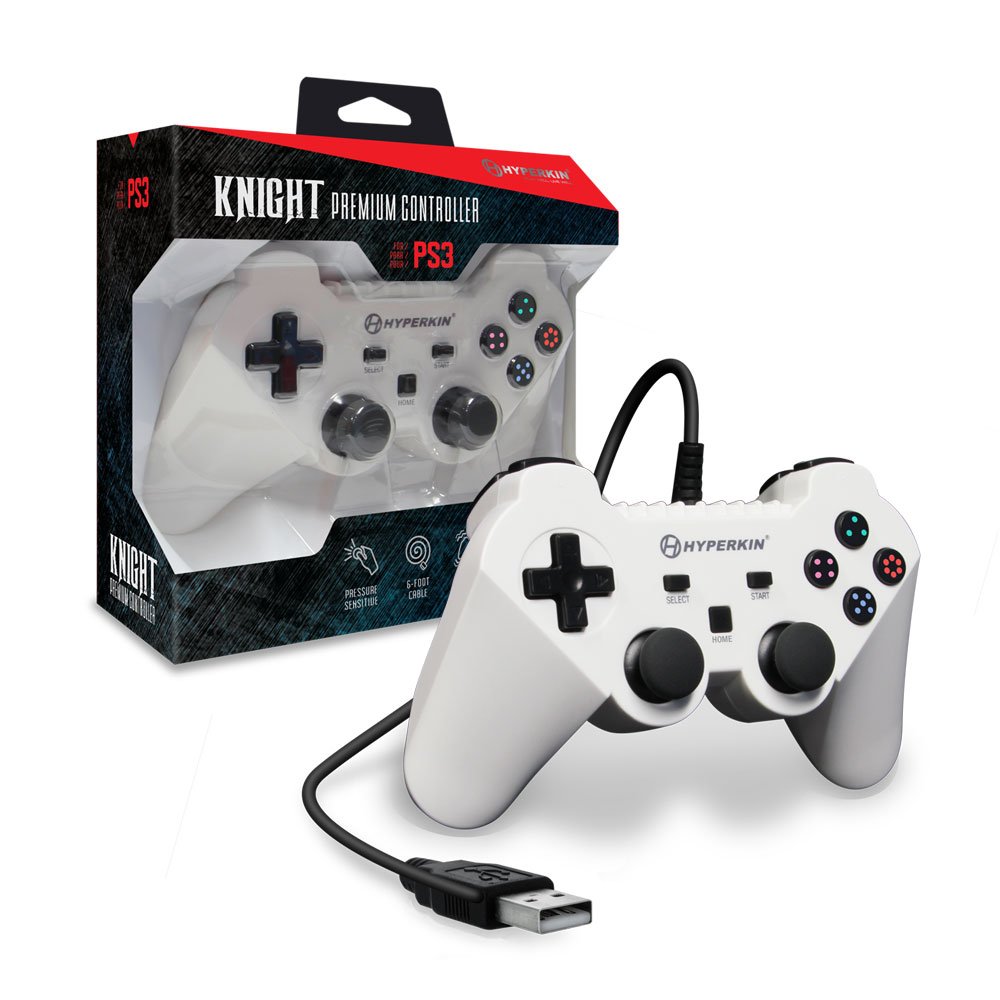
Image: The Hyperkin Knight Premium Controller displayed alongside its retail packaging, highlighting the product's design and branding.

תמונה: תקריב view of the Hyperkin Knight Premium Controller's retail box, showcasing key features and design elements.

תמונה: זווית view of the Hyperkin Knight Premium Controller, emphasizing its ergonomic shape and button placement.