
מָבוֹא
The ASUS Prime Z270-A motherboard is designed to support 7th generation Intel Core processors, offering a robust platform for PC enthusiasts. It integrates advanced customization and tuning capabilities, making it suitable for various system builds. This manual provides essential information for the proper setup, operation, maintenance, and troubleshooting of your motherboard.
תכונות עיקריות:
- אופטימיזציה 5-כיוונית: Features auto-tuning and FanXpert 4 for tailored overclocking profiles and dynamic system cooling.
- קישוריות משופרת: Includes integrated Dual M.2 slots, Intel Optane Memory compatibility, USB 3.1 Type-A/Type-C connections, and Intel Thunderbolt 3 support for maximum transfer speeds.
- טכנולוגיית SafeSlot: Dual patent-pending Safe Slots with metal framing provide increased support and rigidity for heavy graphics cards.
- AURA Sync RGB Lighting: Offers a wide spectrum of colors and synchronization effects across compatible AURA Sync enabled products.
- 3D-Printing Mounts: On-board mounts allow for unique design customization.
תוכן החבילה
ודא שכל הפריטים נמצאים בחבילת לוח האם שלך:
- מדריך למשתמש
- כבלי Serial ATA 6.0Gb/s (3)
- SLI HB BRIDGE (2-WAY-M)
- ASUS Q-Shield
- מחבר Q
- חבילת ברגים M.2
- כלי התקנת מעבד
התקנה והתקנה
This section guides you through the physical installation of components onto your motherboard.
1. לוח האם מעלview
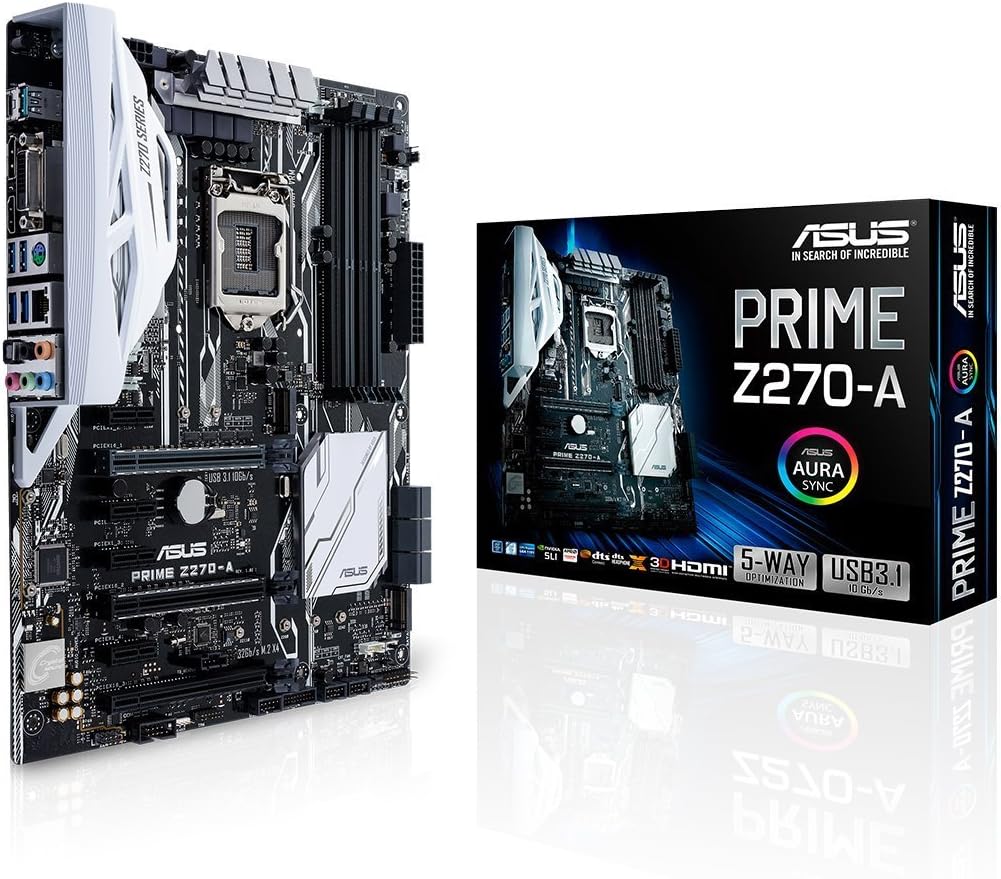
This image displays a full view of the ASUS Prime Z270-A motherboard, highlighting its layout and various component slots.
2. התקנת מעבד
The motherboard features an LGA 1151 socket for 7th Generation Intel Core processors. Carefully align the CPU with the socket, ensuring the gold triangle on the CPU matches the triangle on the socket. Lower the retention arm to secure the CPU.
3. התקנת זיכרון RAM
Install DDR4 memory modules into the four available DIMM slots. For optimal performance, refer to the user manual for recommended dual-channel configurations. Ensure the modules are firmly seated until the clips on both ends lock into place.
4. התקנת התקן אחסון
The motherboard supports both traditional SATA drives and high-speed M.2 SSDs.

This image shows the dual M.2 slots on the motherboard, which allow for high-speed NVMe SSDs and can be configured in RAID for enhanced performance.
Utilize the dual M.2 slots for PCIe RAID configurations to achieve superior data transfer speeds. Connect SATA drives to the available SATA 6.0Gb/s ports.
5. התקנת כרטיס מסך
Insert your graphics card(s) into the PCIe x16 slots. The two primary PCIe x16 slots feature ASUS SafeSlot technology, providing reinforced support for heavier graphics cards.

This image highlights the ASUS SafeSlot technology on the PCIe x16 slots, which provides enhanced retention and shearing resistance for graphics cards.
6. חיבורי חשמל
חבר את מחבר החשמל ATX בן 24 הפינים ואת מחבר החשמל של המעבד בן 8 הפינים מספק הכוח שלך ליציאות המתאימות בלוח האם.
7. Rear Panel Connectivity
Connect your peripherals to the rear I/O ports.
This image illustrates the rear I/O panel of the ASUS Prime Z270-A motherboard, detailing the various ports including USB 3.1 Type-A and Type-C, DVI, DisplayPort 1.2, HDMI 1.4B, 4x USB 3.0, Gigabit LAN, PS/2, and 8-Channel HD Audio jacks.
- יציאות USB: Two USB 3.1 ports (one Type-A, one Type-C) and four USB 3.0 ports.
- יציאות וידאו: DisplayPort 1.2, HDMI 1.4B, and DVI for display connections.
- רֶשֶׁת: Gigabit LAN port for wired internet connection.
- שֶׁמַע: 8-Channel HD Audio jacks.
- מוֹרֶשֶׁת: PS/2 port for older keyboards or mice.
הוראות הפעלה
This section covers basic operation and customization features of your motherboard.
1. גישת BIOS/UEFI
כדי לגשת לכלי ההגדרות של BIOS/UEFI, הפעל את המחשב ולחץ שוב ושוב על DEL מפתח או F2 key during the Power-On Self-Test (POST). This allows you to configure system settings, boot order, and advanced features.
2. 5-Way Optimization
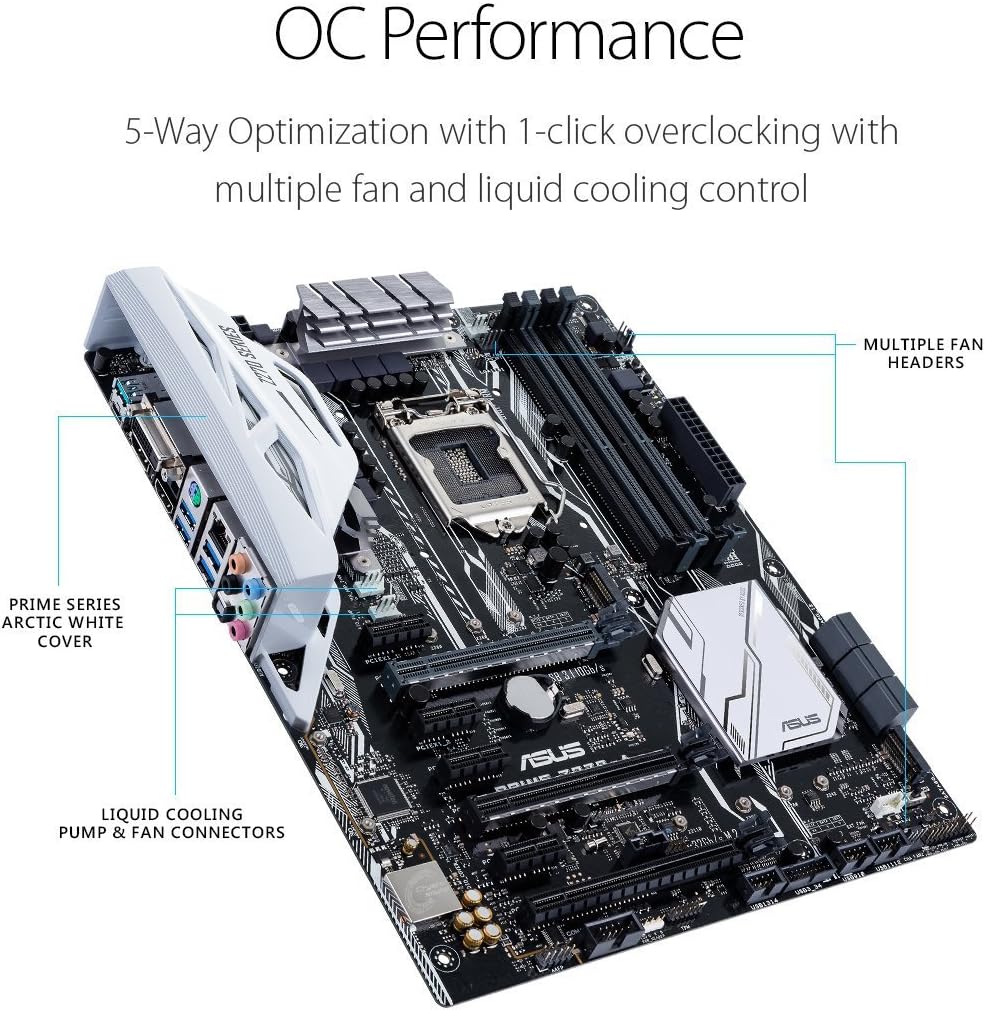
Utilize the ASUS 5-Way Optimization feature for intelligent auto-tuning of your system. This function automatically tailors overclocking profiles to your specific build, optimizing CPU performance, fan speeds, and power delivery for efficiency and stability.

This image highlights the OC Performance capabilities of the ASUS Prime Z270-A, featuring 5-Way Optimization with 1-click overclocking and control over multiple fan and liquid cooling connectors.
3. AURA Sync RGB Lighting
Customize the aesthetic of your build using AURA Sync RGB lighting. The motherboard includes an RGB LED header (+12V G R B) for connecting LED strips, which can be controlled via the AURA Sync software to synchronize lighting effects across compatible components.

This image shows the RGB_HEADER on the motherboard, allowing connection of LED strips for customizable lighting effects via AURA Sync software.
4. מוצר רשמי נגמרview וִידֵאוֹ
סרטון זה מספק סקירה מפורטתview of the ASUS Prime Z270-A motherboard, showcasing its features, connectivity options, and design. It offers visual guidance on various aspects of the product.
תַחזוּקָה
תחזוקה נכונה מבטיחה את אורך החיים והביצועים האופטימליים של לוח האם שלך.
1. עדכוני BIOS ומנהלי התקנים
בדקו באופן קבוע את התמיכה של ASUS website for the latest BIOS updates and device drivers. Updating these components can improve system stability, performance, and compatibility with new hardware or software.
2. ניקוי פיזי
Periodically clean dust from the motherboard and other internal components using compressed air. Ensure the system is powered off and unplugged before cleaning. Dust accumulation can lead to overheating and reduced performance.
פתרון בעיות
סעיף זה עוסק בבעיות נפוצות שאתה עשוי להיתקל בהן.
1. No Power/No POST
- ודא שכל כבלי החשמל (ATX בעל 24 פינים, מעבד בעל 8 פינים) מחוברים היטב.
- Ensure the CPU and RAM are correctly seated. Try booting with only one RAM stick.
- Check for any diagnostic LEDs or POST codes on the motherboard, if available, and consult the user manual for their meaning.
2. בעיות תצוגה
- Confirm the graphics card is properly installed in its PCIe slot and any necessary power connectors are attached.
- Ensure the monitor cable is connected to the graphics card (or motherboard if using integrated graphics) and not loose.
- בדוק עם כבל תצוגה או מסך אחר במידת האפשר.
3. USB Connectivity Problems
- Try connecting USB devices to different ports.
- Ensure USB drivers are up to date.
- For high-bandwidth devices, avoid using multiple such devices on adjacent ports if experiencing issues.
מפרטים
| מותג | ASUS |
| שם הדגם | PRIME Z270-A |
| שקע מעבד | LGA 1151 |
| מעבדים תואמים | דור 7 של Intel Core |
| סוג ערכת שבבים | אינטל Z270 |
| טכנולוגיית זיכרון RAM | DDR4 |
| מהירות שעון זיכרון | 2133 מגה-הרץ (עד 3866 מגה-הרץ OC) |
| Ram Memory Maximum Size | 64 ג'יגה-בייט |
| חריצי זיכרון זמינים | 4 |
| ממשק כרטיס מסך | PCI Express |
| Total PCIe Ports | 2 (PCIe x16) |
| Total SATA Ports | 6 |
| M.2 חריצים | 2 |
| יציאות USB 3.1 | 2 (1x Type-A, 1x Type-C) |
| יציאות USB 3.0 | 4 (קלט/פלט אחורי) |
| יציאות USB 2.0 | 6 (כותרות פנימיות) |
| Total Number of HDMI Ports | 1 |
| DisplayPort | 1 |
| יציאת DVI | 1 |
| מספר יציאות אתרנט | 1 |
| שֶׁמַע | 8-Channel HD Audio |
| פּלַטפוֹרמָה | Windows 10 |
| משקל פריט | 1.1 קילוגרם |
מידע על אחריות
The ASUS Prime Z270-A Motherboard comes with a 3 שנות אחריות. For detailed terms and conditions, please refer to the warranty card included in your product package or visit the official ASUS support webאֲתַר.
תְמִיכָה
לסיוע נוסף, תמיכה טכנית או הורדות מנהלי התקנים, אנא בקרו באתר התמיכה הרשמי של ASUS webאֲתַר:
You can also find FAQs and troubleshooting guides specific to your motherboard model on the support page.