
1. הקדמה
This manual provides essential information for the safe and efficient use of your InFocus IF195a Touch Pad. Please read this manual thoroughly before operating the device and retain it for future reference.
2. מידע בטיחות
- אין לחשוף את המכשיר לטמפרטורות קיצוניות, לאור שמש ישיר או לחות גבוהה.
- הימנע מנפילה או הכפיפה של המכשיר למכות חזקות.
- Use only the charger provided or approved by InFocus.
- אל תנסה לפרק או לתקן את המכשיר בעצמך. יש לפנות לכל מטפל מוסמך בתחום התחזוקה.
- הרחק את המכשיר ממים ומנוזלים אחרים.
- יש להשליך את המכשיר והסוללה שלו בצורה אחראית בהתאם לתקנות המקומיות.
3. המוצר נגמרview
The InFocus IF195a is a 20-inch Android-powered touch pad designed for interactive use. Familiarize yourself with its components.
3.1 חזית View

איור 1: חֲזִית view of the InFocus IF195a Touch Pad. This image shows the large 20-inch display with the Android operating system interface, including various app icons and the Google search bar. The device features a sleek bezel around the screen.
- לְהַצִיג: 20-inch multi-touch screen.
- מצלמה קדמית: Located at the top center bezel.
- מִיקרוֹפוֹן: משולב לקלט קולי.
3.2 צד View ונמלים
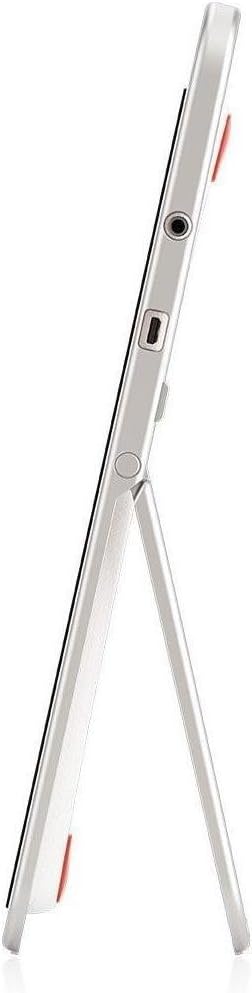
איור 2: צַד view of the InFocus IF195a Touch Pad. This image highlights the device's slim profile and the integrated kickstand, which allows for upright positioning. Visible ports include a headphone jack and a USB port.
- לחצן הפעלה: Used to turn the device on/off or put it to sleep.
- לחצני עוצמת הקול: כוונן את פלט השמע של המכשיר.
- שקע אוזניות (3.5 מ"מ): לחיבור התקני שמע חיצוניים.
- יציאת מיקרו USB: לטעינה והעברת נתונים.
- מעמד משולב: Allows the device to stand upright.
4. התקנה
4.1 פתיחת האריזה וטעינה ראשונית
- Carefully remove the InFocus IF195a Touch Pad and all accessories from the packaging.
- Connect the provided power adapter to the Micro-USB port on the device and plug it into a power outlet. Allow the device to charge fully before first use. The charging indicator will typically show a full battery when complete.
4.2 הפעלה/כיבוי
- כדי להפעיל: Press and hold the Power button until the InFocus logo appears on the screen.
- כדי לכבות: לחץ והחזק את לחצן ההפעלה עד להופעת תפריט כיבוי. בחר "כיבוי" ואשר.
- לישון/להתעורר: Briefly press the Power button to put the device into sleep mode or wake it up.
4.3 אשף ההתקנה הראשונית
עם ההפעלה הראשונה, המכשיר ידריך אותך בתהליך הגדרה ראשוני:
- בחירת שפה: בחר את השפה המועדפת עליך.
- חיבור Wi-Fi: Select your Wi-Fi network from the list and enter the password. A stable internet connection is required for many features.
- חשבון גוגל: Sign in with an existing Google account or create a new one. This is necessary to download apps from the Google Play Store and access Google services.
- תאריך ושעה: Set the correct date and time or allow the device to set it automatically via the network.
- הגדרות פרטיות: Review ולהתאים את הגדרות הפרטיות כרצונך.
5. הפעלת ההתקן
5.1 גע בתנועות
- בֶּרֶז: גע במסך פעם אחת כדי לבחור פריט או לפתוח יישום.
- גע והחזק: Press and hold an item to access contextual menus or drag items.
- לִגנוֹב: גרור את האצבע על פני המסך כדי לגלול בין רשימות או לעבור בין מסכי בית.
- צביטה-להגדלה: השתמשו בשתי אצבעות כדי להגדיל או להקטין תמונות, מפות או web דפים.
5.2 מסך הבית וניווט
- כפתור בית: Returns you to the main home screen.
- כפתור חזרה: חזרה למסך הקודם או סגירת היישום הנוכחי.
- לחצן אפליקציות אחרונות: מציג רשימה של יישומים שהיו בשימוש לאחרונה לצורך החלפה מהירה.
- לוח הודעות: החלק מטה מראש המסך כדי לגשת להתראות ולהגדרות מהירות.
5.3 התקנה וניהול של יישומים
- חנות Google Play: Open the "Play Store" app to browse and download applications. A Google account is required.
- התקנת אפליקציות: Select an app and tap "Install." Follow on-screen prompts for permissions.
- הסרת התקנה של אפליקציות: עבור אל הגדרות > אפליקציות, select the desired app, and tap "Uninstall." Alternatively, touch and hold an app icon on the home screen and drag it to the "Uninstall" option (if available).
5.4 חיבור להתקנים חיצוניים
- אוזניות: חבר אוזניות 3.5 מ"מ לשקע האוזניות.
- התקני USB: Connect compatible USB devices (e.g., flash drives, keyboards) to the Micro-USB port using an appropriate adapter if necessary. The device supports USB On-The-Go (OTG).
6. תחזוקה
6.1 ניקוי ההתקן
- השתמש במטלית רכה ונטולת מוך כדי לנקות את המסך וגוף המכשיר.
- עבור סימנים עקשניים, מעט דמוי עורampנקו את המטלית במים או בחומר ניקוי מסכים המיועד במיוחד לאלקטרוניקה.
- הימנעו משימוש בכימיקלים חזקים, חומרי ניקוי שוחקים או תרסיסים.
6.2 טיפול בסוללה
- כדי להאריך את חיי הסוללה, הימנעו מפריקת הסוללה לחלוטין לעתים קרובות.
- אין להשאיר את המכשיר מחובר למטען למשך פרקי זמן ממושכים לאחר טעינה מלאה.
- Store the device in a cool, dry place if not used for a long time, with the battery charged to about 50%.
6.3 עדכוני תוכנה
בדוק מעת לעת אם קיימים עדכוני תוכנה כדי להבטיח ביצועים ואבטחה מיטביים. עבור אל Settings > About tablet > System updates to check for and install available updates. Ensure your device is connected to Wi-Fi and has sufficient battery charge before starting an update.
7. פתרון תקלות
| בְּעָיָה | פתרון אפשרי |
|---|---|
| המכשיר לא יידלק. | Ensure the device is charged. Connect the charger and wait a few minutes before attempting to power on again. If unresponsive, perform a hard reset by holding the power button for 10-15 seconds. |
| בעיות חיבור Wi-Fi. | בדוק אם ה-Wi-Fi מופעל בהגדרות. הפעל מחדש את נתב ה-Wi-Fi. שכח מהרשת והתחבר מחדש. ודא שאתה נמצא בטווח קליטה של אות ה-Wi-Fi. |
| Applications are crashing or freezing. | Close and restart the application. Clear the app's cache (הגדרות > אפליקציות > [שם האפליקציה] > אחסון > נקה מטמון). If the problem persists, uninstall and reinstall the app. |
| המסך לא מגיב. | Restart the device. Ensure the screen is clean and free of debris. If the issue continues, contact support. |
| ביצועים איטיים. | Close unnecessary background applications. Clear cache for frequently used apps. Check available storage (הגדרות > אחסון) and free up space if needed. Consider a factory reset as a last resort. |
7.1 איפוס להגדרות היצרן
איפוס להגדרות היצרן ימחק את כל הנתונים מהמכשיר שלך וישחזר אותו להגדרות היצרן המקוריות שלו. גבה את כל הנתונים החשובים לפני שתמשיך.
- עבור אל הגדרות > גיבוי ואיפוס > איפוס לנתוני יצרן.
- Read the warning message carefully.
- Tap "Reset tablet" and then "Erase everything" to confirm.
- המכשיר יופעל מחדש ויתחיל בתהליך האיפוס.
8. מפרט טכני
| תכונה | מִפרָט |
|---|---|
| דֶגֶם | IF195a |
| מותג | InFocus |
| גודל תצוגה | 20 אינץ' |
| רזולוציה מקסימלית | 1600 x 900 |
| מעבד | ARM Cortex-A15 Quad-Core 1.8 GHz |
| קיבולת RAM | 2 ג'יגה-בייט |
| קיבולת אחסון | 16 ג'יגה-בייט |
| מַעֲרֶכֶת הַפעָלָה | אנדרואיד 4.4 קיטקט |
| רזולוציית מצלמה אחורית | 5 מגה פיקסל |
| מידות (L x W x H) | 61.6 x 47 x 8.6 ס"מ |
| מִשׁקָל | 3.7 ק"ג |
| צֶבַע | אָפוֹר |
9. אחריות ותמיכה
For warranty information, please refer to the warranty card included with your product or visit the official InFocus website. For technical support, product registration, or service inquiries, please contact InFocus customer service through their official channels.
Please note that warranty terms may vary by region and retailer. Keep your proof of purchase for warranty claims.