
1. הקדמה
תודה על הרכישהasing the ELECOM M-XGM10DBBK Wireless 5-Button BlueLED Mouse. This mouse is designed for comfort and precision, featuring an ergonomic shape that fits naturally in your hand and BlueLED technology for reliable tracking on various surfaces. This manual provides essential information for proper setup, operation, and maintenance of your device.
2. המוצר נגמרview
The M-XGM10DBBK mouse is part of the "EX-G" series, known for its ergonomic design and comfortable grip. It features five buttons, including dedicated back and forward buttons, to enhance productivity.
תכונות עיקריות:
- עיצוב ארגונומי: Shaped to fit the hand for ultimate grip comfort.
- BlueLED Sensor: Provides precise tracking on a wide range of surfaces, including glass and fabric.
- פונקציונליות של 5 כפתורים: Includes left, right, scroll wheel, and dedicated back/forward buttons.
- חיבור אלחוטי 2.4GHz: Offers a stable connection with a range of approximately 10 meters (3 meters on steel desks).
- כפתורים הניתנים להתאמה אישית: Button functions can be re-assigned using the free "ELECOM Mouse Assistant" software (Windows/Mac only).
- מחוון סוללה: א לamp indicates remaining battery life.
רכיבים:
Familiarize yourself with the mouse components:

איור 2.1: למעלה view of the mouse, highlighting the main buttons.
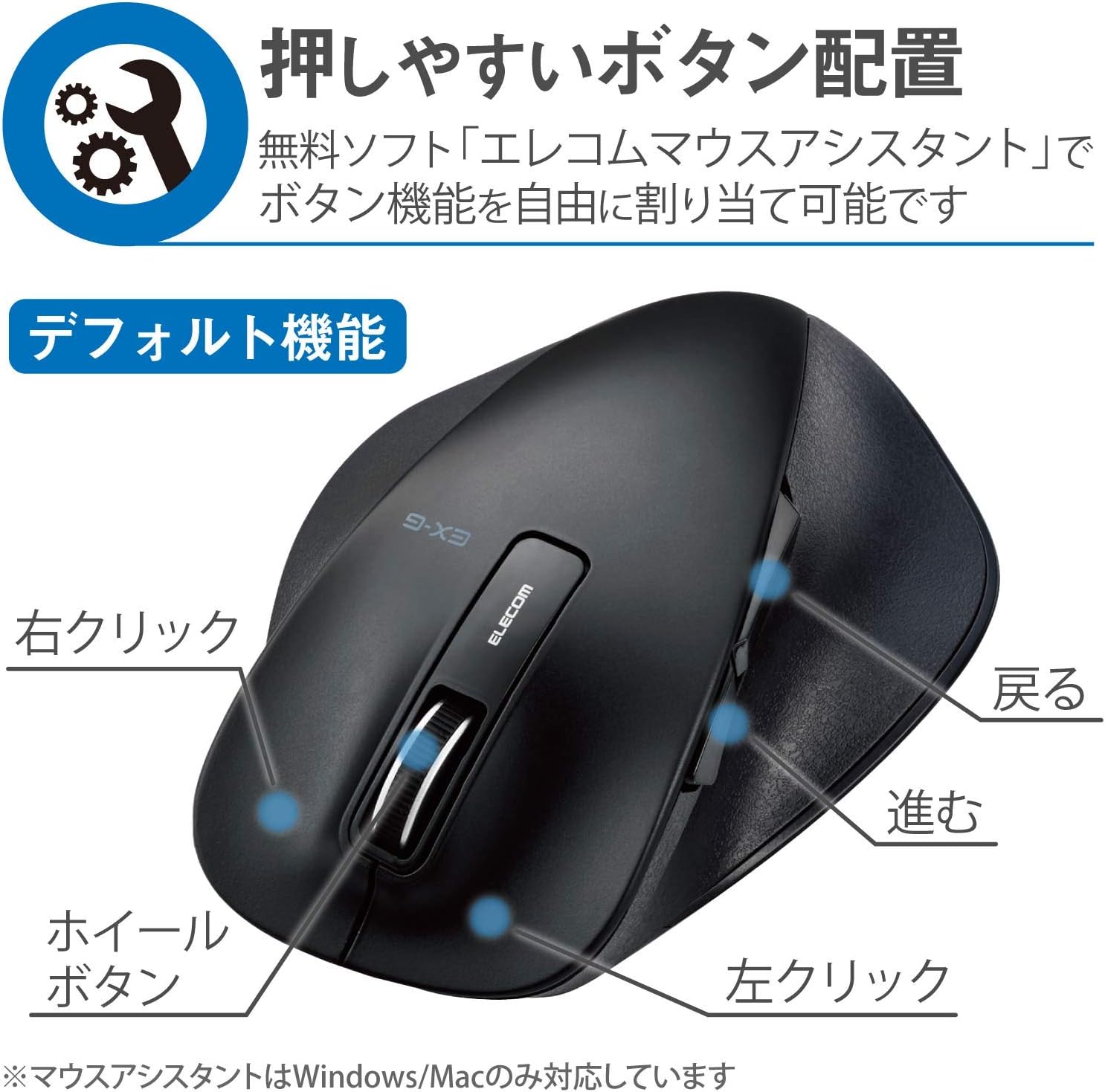
איור 2.2: צד view of the mouse, showing the back and forward buttons.
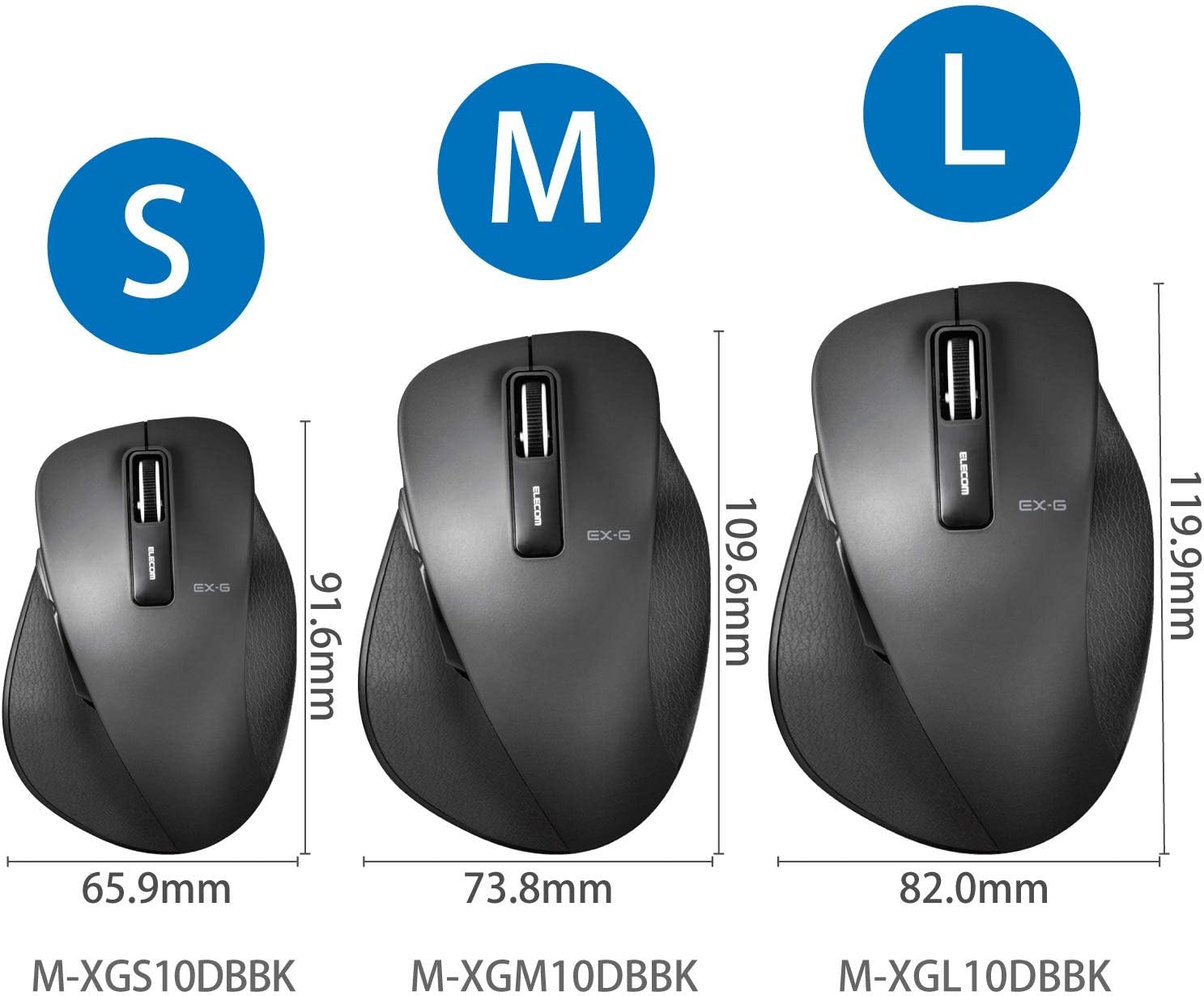
Figure 2.3: Size comparison of EX-G mice (S, M, L). The M-XGM10DBBK is the M size.

איור 2.4: תחתון view of the mouse, indicating the optical sensor, power switch, and receiver storage compartment.

Figure 2.5: Illustration of the durable Omron switches used for the left and right click buttons.
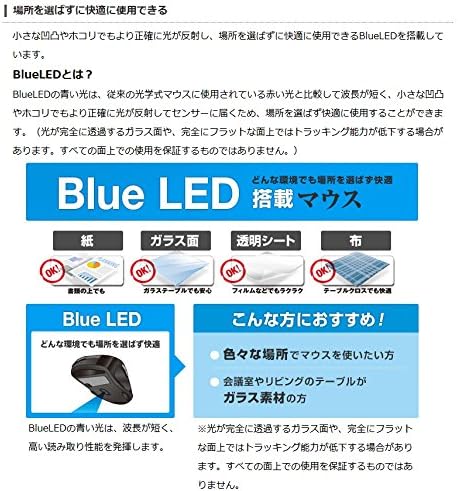
Figure 2.6: Explanation of BlueLED technology, demonstrating its versatility on different surfaces. Note: Tracking performance may decrease on completely transparent or perfectly flat surfaces.

Figure 2.7: Details on 2.4GHz wireless, battery indicator, and 2000 DPI resolution for smooth operation.

Figure 2.8: The ELECOM M-XGM10DBBK mouse is certified to work with Chromebooks.
3. התקנה
3.1 התקנת סוללה
- Locate the battery cover on the bottom of the mouse.
- החלק את המכסה פתוח.
- Insert one AA alkaline, manganese, or nickel-metal hydride battery, ensuring correct polarity (+/-).
- סגור היטב את מכסה הסוללה.
3.2 חיבור מקלט
- Remove the USB receiver from its storage compartment on the bottom of the mouse.
- חבר את מקלט ה-USB ליציאת USB-A זמינה במחשב שלך.
- המחשב שלך אמור לזהות ולהתקין באופן אוטומטי את מנהלי ההתקנים הדרושים. פעולה זו עשויה להימשך מספר רגעים.
3.3 הפעלה
- Slide the power switch on the bottom of the mouse to the "ON" position.
- העכבר מוכן כעת לשימוש.
4. הוראות הפעלה
4.1 פונקציות בסיסיות
- לחיצה שמאלית: בחירה ראשונית והפעלה.
- מקש ימני: פותח תפריטי הקשר.
- גלגל גלילה: גלילה של מסמכים ו web pages vertically. Can also be clicked for middle-click functionality.
4.2 Back/Forward Buttons
The dedicated back and forward buttons located on the side of the mouse allow for quick navigation in web דפדפנים ו file חוקרים.
- הקש על בְּחֲזָרָה button to go to the previous page or folder.
- הקש על קָדִימָה button to go to the next page or folder.
4.3 Customizing Buttons (ELECOM Mouse Assistant)
For advanced customization, download the free "ELECOM Mouse Assistant" software from the official ELECOM website. This software allows you to re-assign functions to the mouse buttons according to your preferences. Please note that this software is compatible with Windows and macOS only.
5. תחזוקה
5.1 ניקוי
כדי לשמור על ביצועים והיגיינה אופטימליים, נקו את העכבר באופן קבוע:
- כבה את העכבר באמצעות מתג ההפעלה.
- השתמש במטלית רכה ויבשה כדי לנגב את פני השטח של העכבר.
- עבור לכלוך עיקש, מעט דחוףampשטפו את המטלית במים או בתמיסת ניקוי עדינה, ולאחר מכן נגבו יבש מיד.
- הימנעו משימוש בכימיקלים חזקים, חומרים שוחקים או ממסים.
- Gently clean the optical sensor area on the bottom of the mouse with a cotton swab if tracking issues occur.
5.2 החלפת סוללה
כאשר מחוון הסוללהamp flashes or the mouse performance degrades, replace the battery:
- כבה את העכבר.
- פתח את מכסה הסוללה.
- הסר את הסוללה הישנה וזורק אותה בהתאם לתקנות המקומיות.
- הכנס סוללת AA חדשה, תוך הקפדה על קוטביות נכונה.
- Close the battery cover and turn the mouse back on.
6. פתרון תקלות
אם אתם נתקלים בבעיות עם העכבר, עיינו בבעיות הנפוצות ובפתרונות הבאים:
| בְּעָיָה | סיבה אפשרית | פִּתָרוֹן |
|---|---|---|
| העכבר לא מגיב | Low battery; Power switch off; Receiver not connected; Receiver interference. | Replace battery; Turn power switch ON; Ensure receiver is firmly plugged in; Try a different USB port; Move closer to the receiver. |
| תנועת סמן לא יציבה | חיישן אופטי מלוכלך; משטח לא מתאים; הפרעה. | Clean optical sensor; Use on a suitable mouse pad or surface; Reduce interference from other wireless devices. |
| כפתורים לא עובדים | התנגשות תוכנה; בעיית דרייבר. | Restart computer; Reinstall mouse drivers; Check for conflicting software. |
| בעיות בחיבור אלחוטי | מרחק גדול מדי; חסימות; הפרעה. | Ensure mouse is within range (10m); Remove obstructions between mouse and receiver; Avoid using near other 2.4GHz devices. |
7. מפרטים
| תכונה | פְּרָט |
|---|---|
| מספר דגם | M-XGM10DBBK |
| שיטת חיבור | אלחוטי 2.4GHz (מקלט USB-A) |
| סוג חיישן | BlueLED Optical |
| כפתורים | 5 buttons (Left, Right, Scroll Wheel, Back, Forward) |
| הַחְלָטָה | 2000 DPI |
| מידות (ב x D x H) | 73.8 x 109.6 x 40.8 mm (M Size) |
| מִשׁקָל | כ. 151.95 גרם (כולל סוללה) |
| מקור כוח | 1 x AA battery (Alkaline, Manganese, or Ni-MH) |
| חיי סוללה משוערים | Approx. 722 days (based on typical usage) |
| מערכת הפעלה תואמת | Windows 11, 10, RT8.1, 8.1, 7, Vista; macOS High Sierra 10.13, OS X 10.10; Chrome OS |
| צֶבַע | שָׁחוֹר |
8. אחריות ותמיכה
8.1 מידע אחריות
מוצר זה מגיע עם א אחריות ל-6 חודשים מתאריך הרכישה. אנא שמור את הוכחת הרכישה שלך לצורך תביעות אחריות. האחריות מכסה פגמי ייצור בשימוש רגיל. היא אינה מכסה נזק שנגרם כתוצאה משימוש לרעה, תאונות, שינויים לא מורשים או בלאי רגיל.
8.2 תמיכת לקוחות
For technical assistance, troubleshooting, or warranty inquiries, please visit the official ELECOM website or contact ELECOM customer support. Contact details can typically be found on the ELECOM webבאתר תחת הקטע 'תמיכה' או 'צור קשר'.