1. הקדמה
This manual provides essential instructions for the setup, operation, maintenance, and troubleshooting of your IBM Lenovo Preferred Pro USB Wired Keyboard and Mouse Set. Please read this manual thoroughly before using the product to ensure proper functionality and longevity.
2. המוצר נגמרview
The IBM Lenovo Preferred Pro USB Wired Keyboard and Mouse Set offers a reliable input solution for your computer. The keyboard features a standard layout with a numeric keypad, while the mouse is a 2-button optical mouse with a scroll wheel. Both devices connect via a standard USB interface, providing plug-and-play compatibility with most operating systems.

איור 2.1: למעלה view of the IBM Lenovo Preferred Pro USB Wired Keyboard.
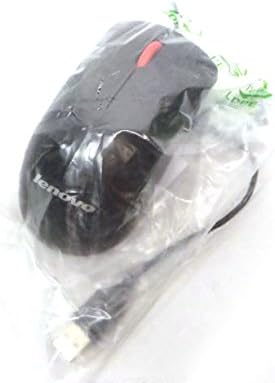
איור 2.2: למעלה view of the Lenovo USB 2-Button Optical Mouse.
תכונות עיקריות:
- USB Wired Connectivity: Ensures a stable and reliable connection.
- Plug-and-Play: No additional drivers typically required for basic functionality.
- Standard Keyboard Layout: Full-size keyboard with numeric keypad.
- Optical Mouse: Precise tracking with a scroll wheel for easy navigation.
3. התקנה
Follow these steps to connect your keyboard and mouse to your computer.
- פירוק המכשירים: הוציאו בזהירות את המקלדת והעכבר מהאריזה שלהם.
- Identify USB Connectors: Locate the USB connectors at the end of the keyboard and mouse cables.
- התחבר למחשב: Insert the USB connector of the keyboard into an available USB port on your computer. Repeat this step for the mouse.
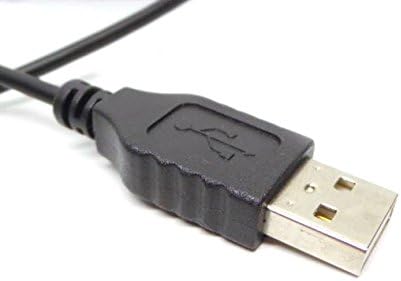
Figure 3.1: Close-up of a standard USB Type-A connector, used for connecting the keyboard and mouse.
Your computer should automatically detect and install the necessary drivers for the keyboard and mouse. No additional software installation is typically required for basic functionality.
4. הוראות הפעלה
4.1 שימוש במקלדת
- הַקלָדָה: השתמש במקשים האלפאנומריים להזנת טקסט.
- מקשי פונקציה (F1-F12): These keys perform various functions depending on the application or operating system.
- לוח מקשים נומרי: Use the dedicated numeric keypad for efficient data entry. Ensure the "Num Lock" indicator light is on.
- מפתחות מיוחדים: Utilize keys like "Print Screen", "Scroll Lock", "Pause/Break", "Insert", "Home", "Page Up", "Delete", "End", and "Page Down" for their respective functions.
4.2 שימוש בעכבר
- תְנוּעָה: Move the mouse across a flat surface to control the cursor on the screen.
- לחיצה שמאלית: לחץ על הלחצן השמאלי כדי לבחור פריטים, לפתוח קישורים או להפעיל פונקציות.
- מקש ימני: לחץ על הכפתור הימני כדי לפתוח תפריטי הקשר.
- גלגל גלילה: גלגלו את גלגלת הגלילה למעלה או למטה כדי לנווט בין מסמכים או web דפים. גלגלת הגלילה עשויה לתפקד גם ככפתור לחיצה אמצעית.
5. תחזוקה
Proper care and maintenance will extend the life of your keyboard and mouse.
- ניקוי:
- Disconnect devices from the computer before cleaning.
- השתמש רך, דamp cloth with a mild cleaning solution (e.g., water or isopropyl alcohol) to wipe surfaces.
- Avoid excessive moisture, especially near keycaps and optical sensors.
- Use compressed air to remove dust and debris from between keyboard keys.
- אִחסוּן: Store the devices in a clean, dry environment away from extreme temperatures and direct sunlight.
- הימנע משפכים: Keep liquids away from the keyboard and mouse to prevent damage.
6. פתרון תקלות
If you encounter issues with your keyboard or mouse, refer to the following common problems and solutions:
| בְּעָיָה | סיבה אפשרית | פִּתָרוֹן |
|---|---|---|
| מקלדת/עכבר לא מגיבים | חיבור USB רופף, יציאת USB פגומה, בעיית דרייבר. |
|
| Keys not working or typing incorrectly | Debris under keys, software conflict, keyboard settings. |
|
| סמן העכבר לא יציב או לא זז | Dirty optical sensor, unsuitable surface, software issue. |
|
If the problem persists after trying these solutions, contact customer support or your reseller for further assistance.
7. מפרטים
| תכונה | פְּרָט |
|---|---|
| Keyboard Model Numbers | 54Y9400, 41A5289, SK-8825, KB1021 |
| Mouse Model Numbers | 45J4888, 25011476, 45J4889, M-U0025-O |
| מותג | IBM / לנובו |
| צֶבַע | שָׁחוֹר |
| טכנולוגיית קישוריות | USB חוטי |
| סוג מקלדת | Preferred Pro USB Wired Keyboard |
| סוג עכבר | 2-Button Black Red Scroll Wheel Optical Mouse |
| מידות חבילה | 22 x 10.2 x 4.7 אינץ' (בערך) |
| משקל פריט | פאונד אחד (בקירוב) |
| יַצרָן | לנובו |
8. אחריות ותמיכה
For warranty information, please refer to the documentation provided at the time of purchase or contact your reseller. IBM and Lenovo products typically come with a standard manufacturer's warranty.
For technical support or further inquiries, please contact the product's manufacturer or the authorized reseller from whom you purchased the item. Keep your purchase receipt and product model numbers handy for faster service.