
1. המוצר נגמרview
The Comfast CF-WR150N is a versatile 150M high-speed 802.11n wireless device designed to enhance and extend your Wi-Fi network. It functions as a personal assistant for your existing router, improving transfer rates and expanding coverage.
This device supports three primary operating modes: Access Point (AP), Repeater, and Router, offering flexible solutions for various networking needs. It is backward compatible with all 802.11b/g/n devices.
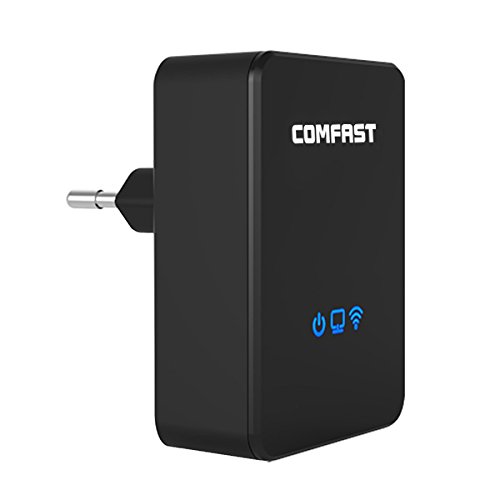
איור 1.1: חזית view of the Comfast CF-WR150N Wireless Repeater.
2. תכולת החבילה
לפני שתמשיך בהתקנה, אנא ודא שכל הפריטים נמצאים בחבילה:
- 1 x Comfast CF-WR150N Wireless Repeater
- 1 x Network Cable (Ethernet Cable)
- מדריך למשתמש אחד (מסמך זה)
- 1 x כרטיס ערבות
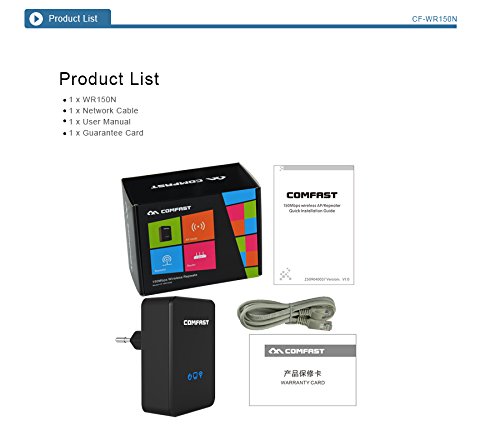
Figure 2.1: Contents included in the Comfast CF-WR150N product package.
3. רכיבי מכשיר
Familiarize yourself with the various parts and indicators of the CF-WR150N device:
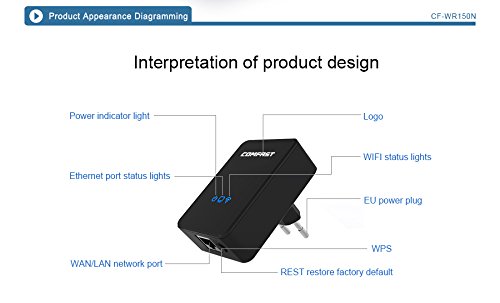
Figure 3.1: Detailed diagram of the CF-WR150N's external components and indicators.
- נורית חיווי כוח: מציין מצב כוח.
- Ethernet Port Status Lights: Indicate activity on the WAN/LAN port.
- WAN/LAN Network Port: Used for wired connections.
- EU Power Plug: For connecting to a power outlet.
- לחצן WPS: For quick and secure wireless setup.
- REST (Reset) Button: משמש לשחזור הגדרות ברירת המחדל של היצרן.
- סֵמֶל: Comfast brand logo.
- WIFI Status Lights: מצביע על פעילות רשת אלחוטית.
4. הגדרה ותצורה
The Comfast CF-WR150N can be configured to operate in three distinct modes: Access Point (AP) Mode, Repeater Mode, and Router Mode. Choose the mode that best suits your network requirements.
4.1. General Setup Steps
- הפעלה: Plug the CF-WR150N into a standard power outlet. Wait for the power indicator light to stabilize.
- התחבר למכשיר:
- חיבור אלחוטי: On your computer or mobile device, search for available Wi-Fi networks. Connect to the network named "COMFAST_XXXX" (where XXXX are the last four digits of the device's MAC address). No password is required for the initial connection.
- חיבור קווי: Connect your computer directly to the CF-WR150N's WAN/LAN port using the provided Ethernet cable.
- גִישָׁה Web מִמְשָׁק: פתח א web browser and enter the default IP address (usually 192.168.10.1 or 192.168.1.254) into the address bar. Refer to the label on the device or the quick start guide for the exact IP.
- כְּנִיסָה לַמַעֲרֶכֶת: הזן את שם המשתמש והסיסמה המוגדרים כברירת מחדל (בדרך כלל "admin" עבור שניהם).
- בחר מצב הפעלה: Once logged in, you will be prompted to select the desired operating mode (AP, Repeater, or Router).
4.2. Operating Modes Explained
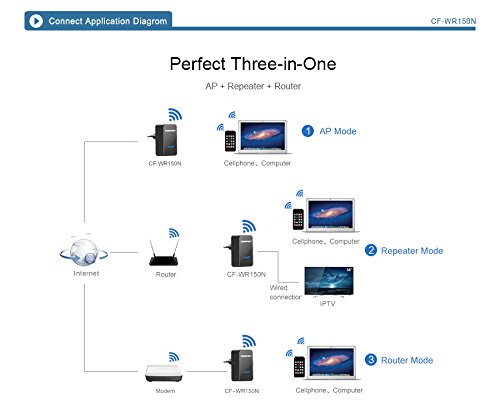
Figure 4.1: Application diagram showing AP, Repeater, and Router modes.
- מצב נקודת גישה (AP): In this mode, the CF-WR150N connects to a wired network (e.g., from a modem or router) and broadcasts a new wireless network. This is ideal for adding Wi-Fi capability to a wired-only network.
- מצב מגבר (מגדיל טווח): This mode extends the coverage of an existing wireless network. The CF-WR150N connects wirelessly to your main router's Wi-Fi signal and re-broadcasts it, effectively eliminating Wi-Fi dead zones.
- מצב נתב: When configured as a router, the CF-WR150N connects directly to your internet service provider's modem via the WAN/LAN port and creates a new wireless network, providing internet access to connected devices.
4.3. WPS Setup (Wireless Protected Setup)
For a quick and secure wireless connection to your existing router in Repeater Mode, you can use the WPS function:
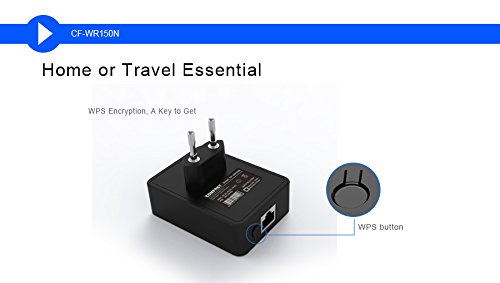
Figure 4.2: Location of the WPS button on the CF-WR150N.
- Plug the CF-WR150N into a power outlet near your main router.
- לחץ על כפתור ה-WPS בנתב הראשי שלך.
- Within two minutes, press the WPS button on the CF-WR150N.
- The devices will automatically establish a secure connection. The Wi-Fi status light on the CF-WR150N will indicate a successful connection.
5. תפעול ושימוש
Once configured, the CF-WR150N operates automatically based on the selected mode. Ensure the device is placed in an optimal location for signal coverage.
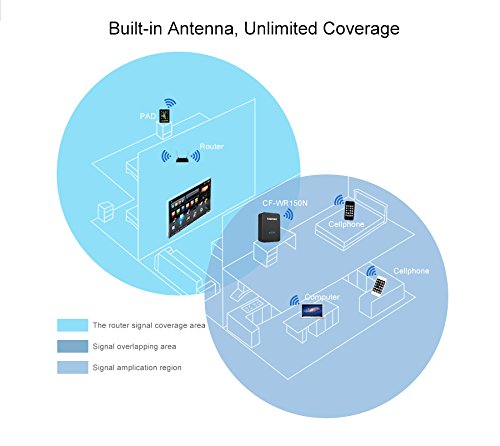
Figure 5.1: Illustration of signal coverage extension with the CF-WR150N.
For Repeater Mode, place the CF-WR150N approximately halfway between your router and the area where you need improved Wi-Fi signal. Avoid placing it in areas with significant interference or physical obstructions.
6. תחזוקה
To ensure optimal performance and longevity of your Comfast CF-WR150N, consider the following maintenance tips:
- עדכוני קושחה: Periodically check the Comfast official website for any available firmware updates. Updating firmware can improve performance, add new features, and fix bugs.
- ניקוי: שמרו על ניקיון המכשיר וללא אבק. השתמשו במטלית רכה ויבשה לניגוב החלק החיצוני. אין להשתמש בחומרי ניקוי נוזליים או בתרסיסים.
- אוורור: Ensure the device has adequate ventilation to prevent overheating. Do not cover the device or place it in an enclosed space.
- הפעלה מחדש: If you experience network issues, a simple restart of the device (unplugging and re-plugging after 10 seconds) can often resolve minor glitches.
7. פתרון תקלות
This section addresses common issues you might encounter with your Comfast CF-WR150N.
| בְּעָיָה | סיבה אפשרית | פִּתָרוֹן |
|---|---|---|
| לא יכול לגשת ל web ממשק ניהול. | Incorrect IP address, device not powered on, or network configuration issue. |
|
| אין גישה לאינטרנט לאחר ההתקנה. | Incorrect mode configuration, weak signal (Repeater Mode), or ISP issue. |
|
| Frequent disconnections or slow speeds. | הפרעות, מיקום לקוי או עומס ברשת. |
|
| Forgot login password or device settings are corrupted. | Password forgotten or misconfiguration. |
|
8. מפרטים
| תכונה | פְּרָט |
|---|---|
| מותג | קומפאסט |
| מספר דגם | CF-WR150N |
| סוג קישוריות | Wi-Fi |
| סוג אלחוטי | 802.11b, 802.11g, 802.11n |
| תקן תקשורת אלחוטית | 802.11b, 802.11g, 802.11n |
| קצב העברת נתונים | 150 Megabits Per Second (as per product description, not 750 from spec list) |
| מחלקה להקת תדרים | Single-Band (implied by 802.11n 150M, Dual-Band from spec list seems incorrect for 150M) |
| תכונות מיוחדות | מצב נקודת גישה, מחוון LED |
| משקל פריט | 180 גרם |
| מידות חבילה | 13.8 x 10.4 x 6.2 ס"מ |
| תאריך זמין ראשון | 1 ביולי 2014 |
Note: Data Transfer Rate and Frequency Band Class are based on the primary product description. Some specification lists may contain discrepancies.
9. אחריות ותמיכה
For detailed information regarding the product warranty, please refer to the כרטיס אחריות included in your product package. This card contains specific terms, conditions, and duration of the warranty.
For technical support, troubleshooting assistance beyond this manual, or service inquiries, please contact Comfast customer support through the channels provided on the Guarantee Card or the official Comfast webאֲתַר.