
1. הקדמה
The Comfast CF-WU720N is a compact 150Mbps Wireless USB Adapter designed to provide high-speed wireless connectivity for your desktop or notebook computer. It allows you to connect to a wireless network and access the internet, share files, and enjoy online gaming at speeds up to 150Mbps. This adapter is compliant with IEEE 802.11b/g/n standards and supports USB 2.0 for efficient data transfer.
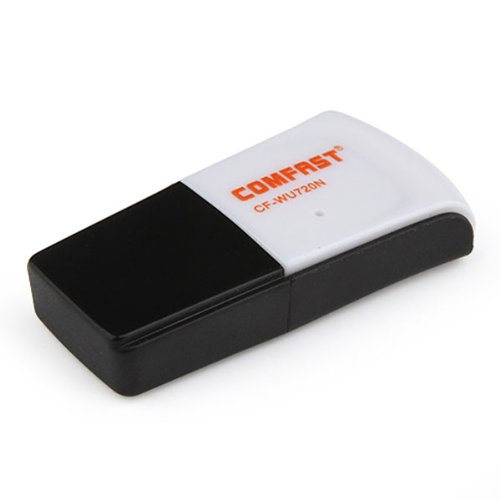
Image 1.1: The Comfast CF-WU720N Wireless USB Adapter, a compact device for wireless connectivity.
2. תכונות מוצר
- Meets IEEE 802.11b/g/n wireless standards.
- Supports USB 2.0 interface for broad compatibility.
- Utilizes Realtek 8191 SU chipset for reliable performance.
- Achieves wireless connection rates up to 150Mbps.
- Supports wireless roaming technology for seamless connectivity.
- Strong compatibility with various popular operating systems.
- Compact size: approximately 39 x 12 x 7mm (1.5 x 0.7 x 0.3 inches).
- Lightweight design: approximately 5g.
3. תכולת החבילה
אנא ודא שכל הפריטים נמצאים בחבילה:
- 1 x Comfast CF-WU720N Wireless USB Adapter
- 1 x מדריך התקנה מהירה
- 1 x CD-ROM Driver
- 1 x תעודת אחריות

Image 3.1: The retail packaging for the Comfast CF-WU720N, showing the adapter inside.
4. התקנה והתקנה
4.1. התקנת דרייבר
Before connecting the USB adapter, it is recommended to install the necessary drivers from the provided CD-ROM. This ensures proper functionality and compatibility with your operating system.
- Insert the driver CD-ROM into your computer's optical drive.
- If the installer does not launch automatically, navigate to "My Computer" or "This PC," open the CD-ROM drive, and run the setup executable (e.g., "setup.exe" or "autorun.exe").
- פעל לפי ההוראות שעל המסך כדי להשלים את התקנת מנהל ההתקן. ייתכן שתתבקש להפעיל מחדש את המחשב לאחר ההתקנה.
- פֶּתֶק: If your computer does not have an optical drive, you may need to download the latest drivers from the manufacturer's official webאֲתַר.
4.2. Connecting the USB Adapter
Once the drivers are installed, you can connect the Comfast CF-WU720N Wireless USB Adapter to your computer.
- Locate an available USB 2.0 or 3.0 port on your desktop or laptop computer.
- Carefully insert the Comfast CF-WU720N adapter into the USB port. Ensure it is fully seated.
- The operating system should automatically detect the adapter and configure it using the installed drivers. A small LED indicator on the adapter may light up or blink, indicating activity.
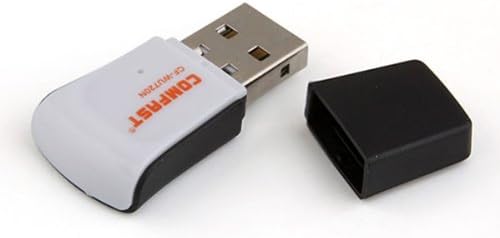
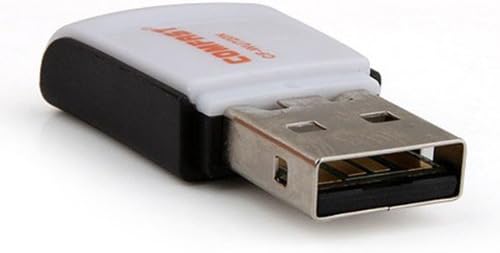
Image 4.1: The Comfast CF-WU720N adapter with its protective cap removed, revealing the USB connector. Image 4.2: A side view of the adapter, highlighting its compact design and USB interface.
5. הוראות הפעלה
After successful driver installation and adapter connection, you can now connect to a wireless network.
- הגדרות רשת גישה:
- חלונות: לחץ על סמל הרשת האלחוטית במגש המערכת (בדרך כלל בפינה הימנית התחתונה).
- MacOS: לחץ על סמל ה-Wi-Fi בשורת התפריטים (בדרך כלל בפינה הימנית העליונה).
- לינוקס: Access network settings through your desktop environment's network manager.
- בחר את הרשת שלך: A list of available wireless networks (SSIDs) will appear. Select the name of your desired network.
- לְחַבֵּר: לחץ על "התחבר" או "הצטרף". אם הרשת מאובטחת, תתבקש להזין את מפתח אבטחת הרשת (סיסמה).
- אשר חיבור: Once connected, the network icon will typically change to indicate a successful connection, and you should be able to access the internet.
6. תחזוקה
To ensure optimal performance and longevity of your Comfast CF-WU720N Wireless USB Adapter, follow these simple maintenance guidelines:
- שמור על ניקיון: Gently wipe the adapter with a soft, dry cloth to remove dust. Avoid using liquid cleaners or solvents.
- הגן על מחבר USB: When not in use, keep the protective cap on the USB connector to prevent dust and damage.
- הימנע מתנאים קיצוניים: אין לחשוף את המתאם לטמפרטורות קיצוניות, לחות או אור שמש ישיר.
- טפל בזהירות: הימנעו מהפלת המתאם או מחשיפתו לפגיעות חזקות.
- עדכוני דרייבר: בדקו מעת לעת את הוראות היצרן website for updated drivers to ensure the best performance and compatibility.
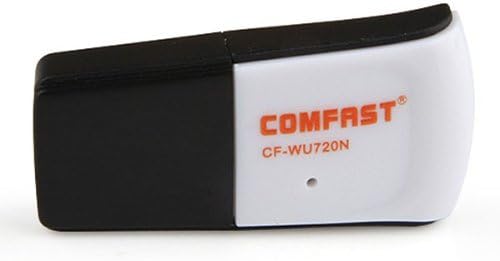
Image 6.1: The Comfast CF-WU720N adapter with its protective cap in place, ready for storage or transport.
7. פתרון תקלות
If you encounter issues with your Comfast CF-WU720N Wireless USB Adapter, refer to the following common solutions:
| בְּעָיָה | פתרון אפשרי |
|---|---|
| Adapter not detected / No Wi-Fi networks visible. |
|
| לא ניתן להתחבר לרשת Wi-Fi ספציפית. |
|
| מהירות חיבור איטית או ניתוקים תכופים. |
|
8. מפרטים
| תכונה | פְּרָט |
|---|---|
| דֶגֶם | CF-WU720N |
| תקנים אלחוטיים | IEEE 802.11b/g/n |
| מִמְשָׁק | USB 2.0 |
| ערכת שבבים | Realtek 8191 SU |
| מהירות אלחוטית | עד 150Mbps |
| טווח תדרים | 2.4 גיגה-הרץ |
| תכונות אבטחה | WPA/WPA2, WPA-PSK/WPA2-PSK, 64/128-bit WEP |
| מערכות הפעלה | Windows XP/Vista/7/8/10, macOS, Linux (driver dependent) |
| מידות (L x W x H) | כ-39 x 12 x 7 מ"מ (1.5 x 0.7 x 0.3 אינץ') |
| מִשׁקָל | כ. 5 גרם |
9. אחריות ותמיכה
This product comes with a warranty as specified on the included Warranty Card. Please refer to the card for details regarding warranty period, terms, and conditions.
For technical support, driver updates, or further assistance, please visit the official Comfast webבאתר או צרו קשר עם מחלקת שירות הלקוחות שלהם. פרטי התקשרות ניתן למצוא בדרך כלל על אריזת המוצר או על כתב היצרן webאֲתַר.
אנא שמור את קבלת הרכישה שלך לצורכי אחריות.