
1. הקדמה
This manual provides essential information for the safe and efficient operation of your InFocus IN2126a WXGA Network Projector. Please read this manual thoroughly before using the projector and retain it for future reference. The InFocus IN2126a is designed for versatile use in various environments, offering high brightness and network capabilities.
2. מידע בטיחות
יש להקפיד על אמצעי הזהירות הבאים כדי למנוע נזק למקרן ולהבטיח את בטיחות המשתמש:
- אין לחסום פתחי אוורור. יש לוודא זרימת אוויר מספקת סביב המקרן.
- אל תסתכל ישירות לתוך עדשת המקרן כאשר ה-lamp דולק. האור הבהיר עלול לגרום נזק לעיניים.
- Avoid placing the projector in direct sunlight, near heat sources, or in environments with high humidity or excessive dust.
- השתמשו רק בכבל החשמל המצורף למקרן.
- יש לפנות לכל מטלות שירות מורשות. אין לנסות לפתוח או לתקן את המקרן בעצמכם.
3. המוצר נגמרview
Familiarize yourself with the components and features of your InFocus IN2126a projector.
3.1 רכיבי המקרן
איור 1: צד קדמי view of the InFocus IN2126a projector, showing the lens and ventilation.

איור 2: צד view of the InFocus IN2126a projector, highlighting the ventilation grilles.
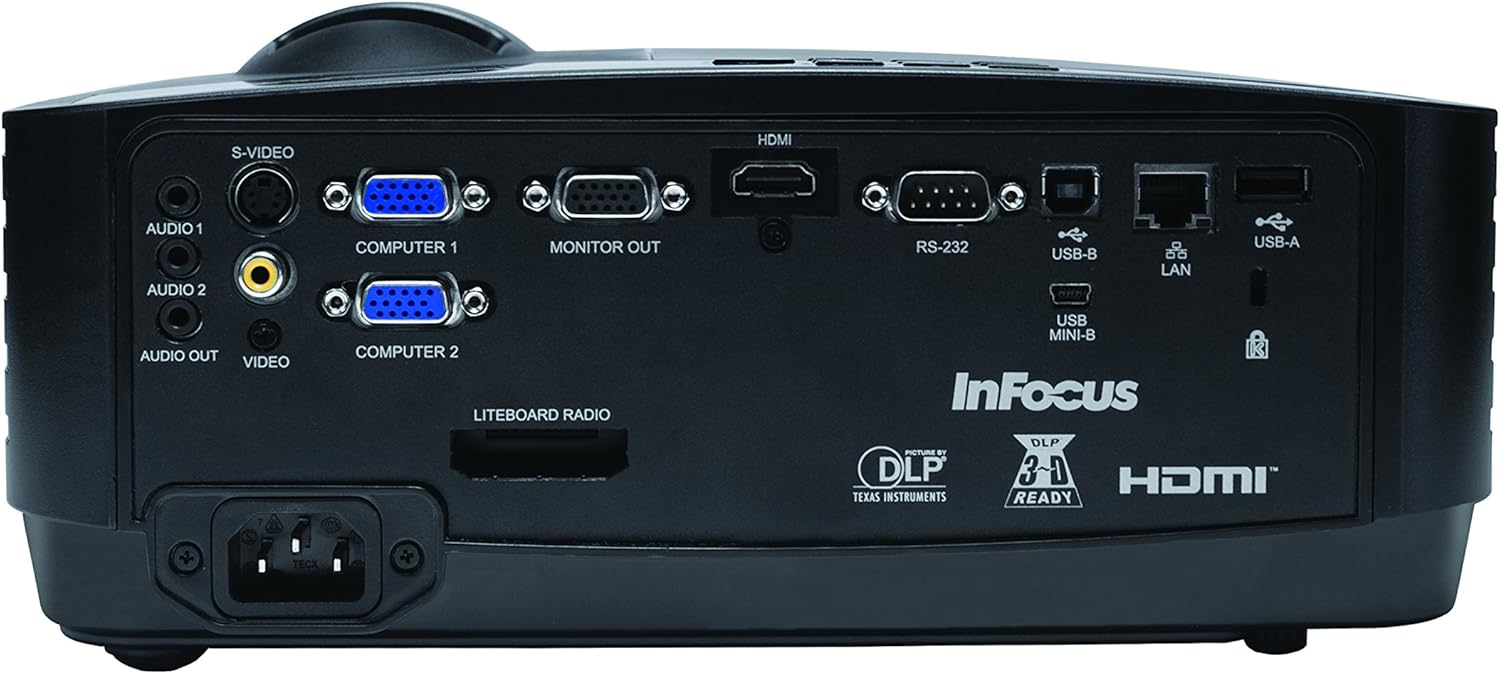
3.2 חיבורי לוח אחורי
הפאנל האחורי מספק מגוון יציאות קלט ופלט לחיבור התקנים חיצוניים.
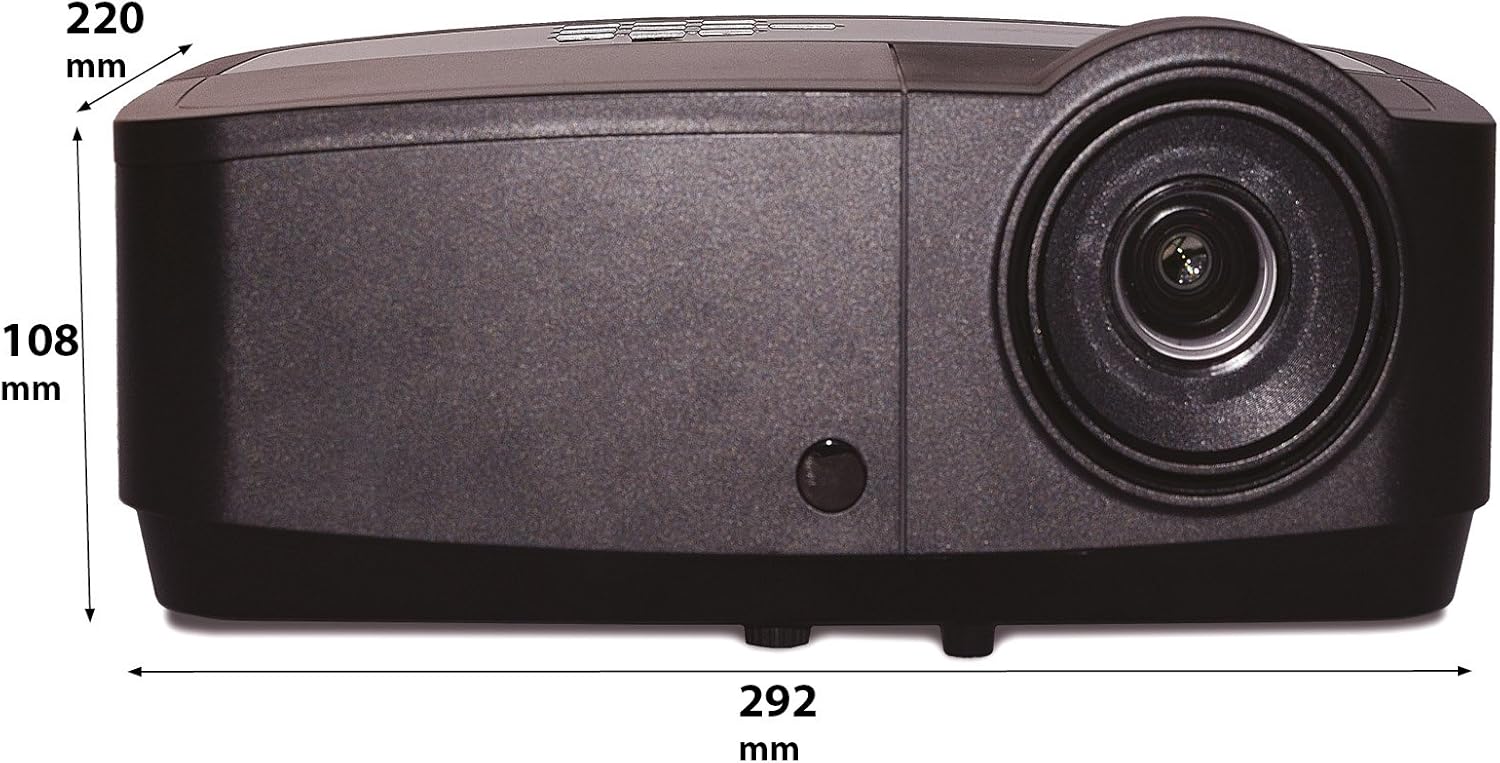
Figure 3: Rear panel of the InFocus IN2126a projector, displaying various connectivity ports including HDMI, VGA, USB, and LAN.
- HDMI: עבור קלט וידאו ואודיו דיגיטליים.
- COMPUTER 1 / COMPUTER 2 (VGA): עבור קלט וידאו אנלוגי ממחשבים.
- MONITOR OUT (VGA): לחיבור צג חיצוני.
- USB-B / USB Mini-B: For service or specific USB functions.
- USB-A: For connecting USB devices, such as a wireless adapter.
- רשת תקשורת מקומית (RJ45): עבור קישוריות רשת.
- RS-232: עבור שליטה סדרתית.
- AUDIO 1 / AUDIO 2 (RCA): לכניסת שמע.
- יציאת קול: לחיבור מערכות שמע חיצוניות.
- וידאו (RCA): עבור קלט וידאו מרוכב.
- S-VIDEO: For S-Video input.
- כניסת חשמל: לחיבור כבל החשמל.
3.3 פקדי הפאנל העליון
The top panel features controls for basic projector functions and image adjustments.

Figure 4: Top panel of the InFocus IN2126a projector, showing the control buttons and focus/zoom rings.
- לחצן הפעלה: מפעיל או מכבה את המקרן.
- כפתור תפריט/יציאה: Accesses or exits the on-screen display (OSD) menu.
- כפתורי ניווט (למעלה, למטה, שמאלה, ימינה): ניווט בין אפשרויות התפריט.
- לחצן Enter: מאשר בחירות בתפריט.
- לחצן המקור: בוחר מקורות קלט.
- Blank Button: Temporarily blanks the screen.
- לחצן אוטומטי: מתאים אוטומטית את הגדרות התמונה.
- טבעת מיקוד: מכוונן את חדות התמונה.
- טבעת זום: מתאים את גודל התמונה.
3.4 מידות
Understanding the physical dimensions is important for installation and placement.

Figure 5: Diagram illustrating the dimensions of the InFocus IN2126a projector (292mm length, 220mm width, 108mm height).
4. התקנה
4.1 מיקום המקרן
Place the projector on a stable, flat surface or mount it securely. Ensure the projector is positioned at an appropriate distance from the screen to achieve the desired image size. Maintain sufficient space around the projector for proper ventilation.
4.2 חיבור התקנים
- חיבור חשמל: Connect the power cord to the projector's power inlet and then to a grounded electrical outlet.
- מקור וידאו:
- For digital sources (e.g., Blu-ray player, laptop), use an HDMI cable to connect to the HDMI port.
- For analog computer sources, use a VGA cable to connect to the COMPUTER 1 or COMPUTER 2 port.
- For other video sources, use the appropriate S-VIDEO or VIDEO (RCA) connections.
- מקור שמע: If your video source does not transmit audio via HDMI, connect audio cables to the AUDIO 1 or AUDIO 2 ports.
- חיבור רשת: For wired network access, connect an Ethernet cable to the LAN port.
- קישוריות אלחוטית: If using a compatible wireless adapter (sold separately), insert it into the USB-A port.
4.3 הפעלה/כיבוי
- כדי להפעיל: Press the Power button on the projector's top panel or the remote control. The power indicator light will illuminate.
- כדי לכבות: Press the Power button again. The projector will enter a cooling cycle before shutting down completely. Do not unplug the projector during the cooling cycle.
5. הפעלת המקרן
5.1 בחירת מקור
After powering on, the projector may automatically detect an active input source. If not, or to switch sources:
- הקש על מָקוֹר לחצן במקרן או בשלט רחוק.
- Use the navigation buttons to highlight the desired input source (e.g., HDMI, Computer 1, Video).
- לִלְחוֹץ לְהַכנִיס כדי לבחור את המקור.
5.2 התאמת תמונה
- מוֹקֵד: סובב את ה מוֹקֵד הטבעת שעל עדשת המקרן עד שהתמונה תיראה חדה וברורה.
- זום: סובב את ה זום ring on the projector lens to adjust the image size to fit your screen.
- תיקון אבן מפתח: אם התמונה נראית טרפזית, השתמש בתכונת תיקון טרפז בתפריט המסך כדי לריבוע התמונה.
5.3 תפריט תצוגה על המסך (OSD).
The OSD menu allows you to configure various projector settings.
- הקש על תַפרִיט כפתור כדי לפתוח את תפריט המסך.
- השתמש ב- למעלה/למטה navigation buttons to select a menu category.
- השתמש ב- שמאל/ימין navigation buttons to adjust settings or enter sub-menus.
- לִלְחוֹץ לְהַכנִיס כדי לאשר שינויים.
- לִלְחוֹץ יְצִיאָה to close the OSD menu.
5.4 קישוריות אלחוטית
The IN2126a is wireless-ready. To enable wireless display, a compatible InFocus wireless adapter (sold separately) must be connected to the USB-A port. Refer to the wireless adapter's specific instructions for setup and connection procedures.
5.5 פונקציונליות תלת-ממדית
The projector supports 3D content. To view 3D content, you will need a compatible 3D source, 3D glasses, and appropriate 3D content. Refer to the projector's OSD menu for 3D settings and ensure your source device is configured for 3D output.
6. תחזוקה
תחזוקה שוטפת מבטיחה ביצועים אופטימליים ומאריכה את חיי המקרן שלך.
6.1 ל'amp תַחֲלִיף
המקרן lamp has a limited lifespan (approximately 4000 hours). When the lamp indicator illuminates or the image brightness significantly decreases, the lamp needs replacement. Always use an authorized InFocus replacement lampעיין במדריך השירות המלא לקבלת פרטים נוספים.amp replacement instructions or contact customer support.
6.2 ניקוי מסננים
Dust accumulation on the air filter can impede airflow and cause overheating. Regularly clean the air filter to maintain proper ventilation. Turn off and unplug the projector before cleaning. Use a soft brush or vacuum cleaner to remove dust from the filter cover.
6.3 ניקיון כללי
- מקרן Casing: השתמש במטלית רכה נטולת מוך דampened with a mild, non-abrasive cleaner. Do not use harsh chemicals.
- עֲדָשָׁה: Use a lens cleaning cloth and specialized lens cleaning solution. Avoid touching the lens surface with your fingers.
7. פתרון תקלות
אם נתקלת בבעיות עם המקרן שלך, עיין בבעיות הנפוצות ובפתרונות הבאים:
| בְּעָיָה | סיבה אפשרית | פִּתָרוֹן |
|---|---|---|
| אין תמונה על המסך | נבחר מקור קלט שגוי; חיבור כבל רופף; מקרן במצב המתנה. | Verify input source; Check all cable connections; Press power button to wake from standby. |
| התמונה מטושטשת | המיקוד לא מותאם; המקרן קרוב/רחוק מדי מהמסך. | Adjust the focus ring; Reposition the projector and adjust zoom. |
| התמונה היא טרפזית | המקרן אינו ניצב למסך. | השתמש בתיקון טרפז (keystone) בתפריט המסך. |
| אין אודיו | Audio cables not connected; Volume too low; Muted. | Check audio cable connections; Adjust volume; Unmute projector. |
| המקרן מתחמם יתר על המידה ונכבה | אוורור חסום; פילטר אוויר מלוכלך. | Ensure clear airflow around projector; Clean the air filter. |
For more detailed troubleshooting, consult the complete user manual or contact InFocus customer support.
8. מפרטים
Key technical specifications for the InFocus IN2126a WXGA Network Projector:
- שם הדגם: IN2126a
- סוג תצוגה: DLP
- רזולוציה מקורית: 1280 x 800 (WXGA)
- בְּהִירוּת: 3500 לומן
- יחס ניגודיות: 15000:1
- שכפול צבע: 1.07 Billion Colors (30-bit)
- חיי הפעלה של מקור אור: 4000 שעות
- טכנולוגיית קישוריות: Wireless-ready, HDMI 1.4, VGA (x2), USB (Type-A, Mini-B, Type-B), LAN (RJ45), RS-232, Audio In (x2), Audio Out, Video (RCA), S-Video
- מאפיינים מיוחדים: 3D-Ready, Network Projector
- גורם צורה: נייד
- סוג הרכבה: מתקן לשולחן
- משקל פריט: 7.1 פאונד
9. אחריות ותמיכה
For information regarding your product's warranty, please refer to the warranty card included with your purchase or visit the official InFocus website. For technical support, service, or to purchase accessories, please contact InFocus customer service through their official channels.