
1. הקדמה
This manual provides instructions for the installation, operation, and maintenance of the ASUS USB-AC56 Dual-Band Wireless-AC1300 USB 3.0 Wi-Fi Adapter. This device is designed to provide high-speed wireless networking capabilities to desktop or notebook PCs, supporting both 2.4 GHz and 5 GHz frequency bands.
2. תכולת החבילה
ודא שכל הפריטים נמצאים באריזת המוצר שלך:
- ASUS USB-AC56 Dual-Band Wireless-AC1300 USB Adapter
- USB Cradle with a three-foot cable
- External High-Gain Antenna
- Driver CD Utility
- יָדָנִי
3. המוצר נגמרview
The ASUS USB-AC56 adapter integrates 802.11ac Wi-Fi technology, offering data rates up to 300 Mbps at 2.4 GHz and 867 Mbps at 5 GHz. It features a USB 3.0 interface for optimal performance and includes a dual internal antenna design for wireless coverage. An attachable high-gain antenna is provided to enhance signal reception.

איור 3.1: ASUS USB-AC56 Wi-Fi Adapter. This image shows the main unit of the ASUS USB-AC56 adapter, highlighting its compact design.
תכונות עיקריות:
- 802.11ac Wi-Fi: Supports the latest Wi-Fi standard for improved speed and efficiency.
- תפעול דו-פס: Operates on both 2.4 GHz and 5 GHz bands for flexibility and compatibility.
- קישוריות USB 3.0: Utilizes USB 3.0 for high-performance data transfer, ensuring the adapter can achieve its maximum wireless speeds.
- טכנולוגיית AiRadar: Provides directional signal amplification for extended coverage and enhanced stability.
- אנטנה חיצונית בעלת הגבר גבוה: An attachable antenna is included to boost Wi-Fi signal strength and range.
- עריסת שולחן עבודה: A USB 3.0 cradle with a three-foot cable is provided for flexible positioning of the adapter, which can help optimize signal strength.
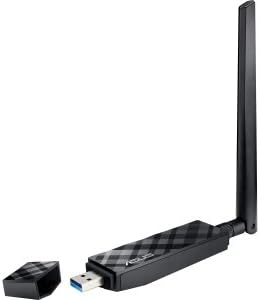
איור 3.2: ASUS USB-AC56 adapter with its protective cap removed, revealing the blue USB 3.0 connector. This illustrates the adapter's direct USB plug design.

איור 3.3: ASUS USB-AC56 adapter shown with the external high-gain antenna attached. This configuration is used to improve signal reception and range.
4. התקנה
4.1. התקנת דרייבר
- חיבור ראשוני: Connect the ASUS USB-AC56 adapter to an available USB 3.0 port on your computer. You may use the included USB cradle for flexible positioning.
- התקנה אוטומטית של מנהל התקן: For most modern operating systems (e.g., Windows 7, 8, 10, Mac OS), the system may automatically detect the device and install a basic driver. Allow this process to complete.
- Manual Driver Update (if necessary): If the adapter does not function correctly or if you wish to ensure you have the latest features and stability, download the most recent drivers from the official ASUS support webאֲתַר. לְבַקֵר תמיכה של ASUS, locate your model (USB-AC56), and download the appropriate driver for your operating system.
- Install Downloaded Driver: אם הורד file is compressed, extract its contents. Go to Device Manager (Windows) or System Information (Mac), find the ASUS wireless adapter, and choose to update the driver, pointing to the extracted driver folder.
4.2. חיבור פיזי
The adapter can be connected directly to a USB 3.0 port or via the included USB cradle. The cradle allows for better placement to optimize signal reception, especially if your computer's USB ports are in a confined area.
- Ensure the USB 3.0 port is available (often identified by a blue interior).
- For enhanced signal, attach the external high-gain antenna to the adapter before connecting it to your computer or cradle.
5. הפעלה
5.1. התחברות לרשת Wi-Fi
Once the drivers are installed, the adapter will appear as a wireless network device in your operating system.
- Access your computer's network settings or Wi-Fi icon in the system tray/menu bar.
- סרוק אחר רשתות אלחוטיות זמינות.
- Select your desired network (SSID) and enter the network security key (password) if prompted.
5.2. פעולה כפולת פס
The USB-AC56 supports both 2.4 GHz and 5 GHz frequency bands. Your router must also support dual-band operation to utilize both.
- רצועת 2.4 GHz: מציע כיסוי רחב יותר וחדירה טובה יותר דרך קירות, מתאים לשימוש כללי באינטרנט ולמכשירים המרוחקים יותר מהנתב.
- רצועת 5 GHz: Provides higher speeds and less interference, ideal for streaming high-definition video and online gaming, typically over shorter distances.
- You may see two network names (SSIDs) from your router, one for each band (e.g., "MyWiFi_2.4GHz" and "MyWiFi_5GHz"). Choose the band that best suits your needs.
6. תחזוקה
- עדכוני דרייבר: בדקו באופן קבוע את התמיכה של ASUS webאתר עבור מנהלי התקנים מעודכנים כדי להבטיח ביצועים ותאימות אופטימליים.
- טיפול גופני: Keep the adapter clean and free from dust. Avoid exposing it to extreme temperatures or moisture.
- חיבור מאובטח: Ensure the adapter is firmly seated in the USB port or cradle.
7. פתרון תקלות
7.1. Unstable Connection or Disconnects
- עדכן דרייברים: Ensure you have the latest drivers installed from the ASUS website. Outdated drivers are a common cause of instability.
- יציאת USB: Try connecting the adapter to a different USB 3.0 port on your computer. Sometimes, specific ports may have issues.
- עריסה USB: If using the cradle, try connecting the adapter directly to the computer, or vice-versa, to rule out the cradle as a source of the problem.
- הַפרָעָה: Other wireless devices (e.g., Bluetooth, cordless phones, microwaves) can cause interference. Try moving the adapter or other devices.
- לְאַתחֵל: A simple computer reboot can often resolve temporary connectivity issues.
7.2. Adapter Not Recognized
- Re-plug: Unplug the adapter and plug it back into the USB port.
- התקנת דרייבר: Revisit Section 4.1 to ensure drivers are correctly installed.
- Different USB Port: Test with another USB port to confirm the port is functional.
7.3. מהירויות נמוכות
- מרחק/מכשולים בנתב: Move closer to your wireless router or ensure there are minimal obstructions (walls, large metal objects).
- רצועת 5 GHz: Connect to the 5 GHz band if available, as it generally offers higher speeds with less interference.
- הגדרות נתב: Ensure your router is configured for optimal performance (e.g., latest firmware, correct channel settings).
8. מפרטים
| תכונה | פְּרָט |
|---|---|
| סוג אלחוטי | 802.11ac |
| ממשק חומרה | USB 3.0 |
| פרוטוקול קישור נתונים | 802.11a/b/g/n/ac |
| קצב העברת נתונים | Up to 1200 Mbps (867 Mbps over 5G + 300 Mbps over 2.4G) |
| תדירות הפעלה | 2.4 גיגה-הרץ / 5 גיגה-הרץ |
| אַנטֶנָה | Internal 2 dBi PCB antenna (Qty 2), External dipole antenna |
| הצפנה | 64-bit WEP, 128-bit WEP, WPA2-PSK, WPA-PSK, WPS support |
| תמיכה במערכת הפעלה | Windows 8 (32/64 bit), Windows 7 (32/64 bit), Windows Vista (32/64 bit), Windows XP (32/64 bit), Mac OS X 10.5, 10.6, 10.7, 10.8 |
| משקל פריט | 50 גרם / 1.76 אונקיות |
| מידות המוצר | 11.5 x 2.8 x 1.9 ס"מ (4.5 x 1.1 x 0.7 אינץ ') |
| יַצרָן | ASUS |
| מספר דגם | USB-AC56 |
9. אחריות ותמיכה
This ASUS product is covered by a limited warranty. For detailed warranty information, please refer to the warranty card included in your product package or visit the official ASUS support website. For technical assistance, driver downloads, or further inquiries, please contact ASUS customer support through their official channels.
תמיכה של ASUS Webאֲתַר: https://www.asus.com/support/