
1. מדריך התקנה
Follow these steps to set up your BlueDriver Bluetooth Pro OBDII Scan Tool:
- Download the BlueDriver App: חפש "BlueDriver OBD2 Scan Tool" on the Apple App Store (for iOS devices) or Google Play Store (for Android devices) and install the application.
- אתר את יציאת ה-OBDII: The OBDII port is typically located under the dashboard on the driver's side of your vehicle. Refer to your vehicle's owner's manual if you have difficulty locating it.
- Plug in the BlueDriver Device: Firmly plug the BlueDriver scan tool into your vehicle's OBDII port. The device will power on automatically, indicated by a blue light.
- הפעל את הצתה של הרכב: Turn your vehicle's ignition to the 'ON' position (do not start the engine).
- אפשר Bluetooth: ודא ש-Bluetooth מופעל בטלפון החכם או בטאבלט שלך.
- התחברות דרך אפליקציה: Open the BlueDriver app. The app will automatically detect and connect to the BlueDriver device via Bluetooth. Follow any on-screen prompts within the app to complete the connection.

Image: The BlueDriver device is designed for easy plug-and-play installation into your vehicle's OBDII port, requiring no tools.
2. הוראות הפעלה
Once connected, the BlueDriver app provides a comprehensive interface for vehicle diagnostics:
- קריאה וניקוי קודים: Access the 'Read Codes' section to view confirmed, pending, and permanent diagnostic trouble codes (DTCs) for your vehicle. Use the 'Clear Codes' function to turn off the Check Engine Light and other warning indicators after repairs. The tool supports enhanced codes for ABS, Airbag (SRS), and TPMS systems, among others.
- Access Repair Reports: For each DTC, the app provides detailed repair reports, including code definitions, possible causes, and reported fixes specific to your vehicle. These reports are compiled from a vast database of verified repairs.
- View נתונים חיים: Monitor various vehicle sensors and parameters in real-time. This feature allows you to observe engine RPM, coolant temperature, fuel system status, and more, which can be crucial for diagnosing intermittent issues.
- מוכנות לבדיקת ערפיח: Determine if your vehicle is ready for an emissions test by checking the status of various emission monitors.
- הקפאת נתוני מסגרת: When a DTC is stored, the tool captures a 'snapshot' of vehicle conditions (e.g., engine speed, coolant temperature) at the moment the fault occurred, providing valuable context for diagnosis.
- Repair Videos: The app provides access to a large database of repair videos with step-by-step directions for common vehicle issues.
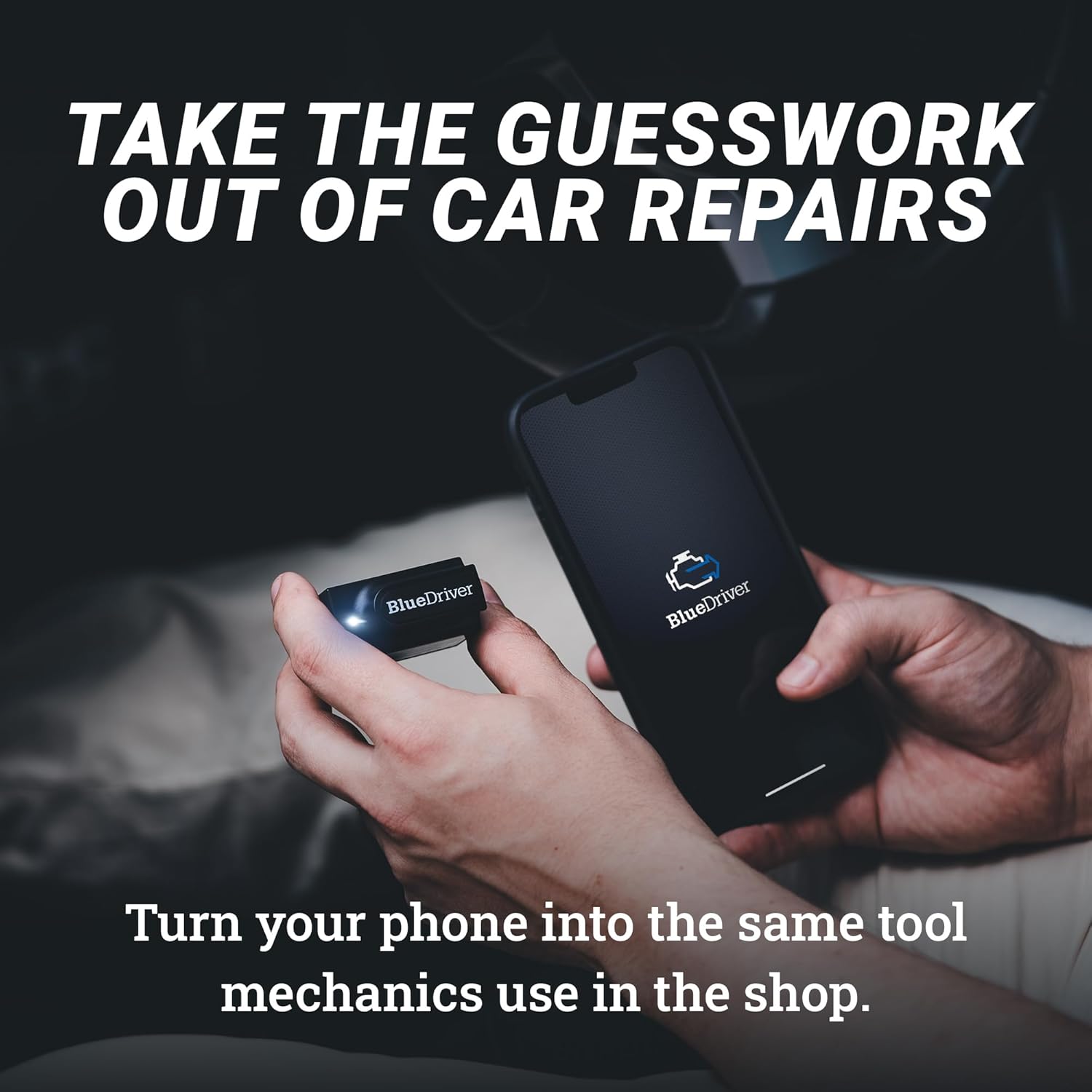
Image: The BlueDriver device and app allow your phone to function as a professional diagnostic tool.

Image: The BlueDriver app translates over 9000 diagnostic codes instantly, providing clear information on vehicle issues.

Image: Access certified repair guides and videos directly through the BlueDriver app for comprehensive repair assistance.

Image: The app offers real-time tracking with live data, check engine light snapshots with freeze frame, smog check functionality, and the ability to order auto parts.
Note: No official seller videos were available for embedding in this manual.
3. תחזוקה
To ensure the longevity and optimal performance of your BlueDriver device:
- ניקוי: נגבו את המכשיר במטלית רכה ויבשה. הימנעו משימוש בכימיקלים חזקים או בחומרי ניקוי שוחקים.
- אִחסוּן: Store the device in a cool, dry place away from direct sunlight and extreme temperatures when not in use. Prolonged exposure to high heat (e.g., inside a hot car) can damage the electronics.
- עדכוני תוכנה: The BlueDriver app and device firmware receive regular, free updates. Ensure your app is always updated to the latest version to access new features, vehicle compatibility improvements, and bug fixes.
4. פתרון תקלות
If you encounter issues with your BlueDriver device, consider the following:
- המכשיר לא מופעל: Ensure the device is firmly seated in the OBDII port and your vehicle's ignition is in the 'ON' position. Check your vehicle's fuse for the OBDII port if the issue persists.
- האפליקציה לא מתחברת למכשיר:
- ודא ש-Bluetooth מופעל במכשיר הנייד שלך.
- Ensure the BlueDriver app has Bluetooth permissions enabled in your phone's settings.
- Try restarting your mobile device and the BlueDriver app.
- Unplug and re-plug the BlueDriver device from the OBDII port.
- קריאות לא מדויקות או נתונים חסרים: Ensure your vehicle is compatible with the BlueDriver device (gas vehicles 1996+). Update the BlueDriver app to the latest version.
- Difficulty Interpreting Codes: Utilize the app's built-in repair reports for detailed explanations and suggested fixes for diagnostic trouble codes.
עבור בעיות מתמשכות, עיין בסעיף 'אחריות ותמיכה' לקבלת פרטי קשר.
5. מפרטים
| תכונה | פְּרָט |
|---|---|
| מותג | BlueDriver |
| דֶגֶם | LSB2 |
| מידות המוצר | אורך 2.2 אינץ', רוחב 1.9 אינץ', גובה 1 אינץ' |
| משקל פריט | 2.08 אונקיות |
| תאימות מערכת הפעלה | iOS ואנדרואיד |
| קישוריות | בלוטות' |
| Supported Vehicle Years | All gas vehicles 1996+ |
| Supported Diagnostics | Check Engine Light (CEL), ABS, Airbag (SRS), Transmission, TPMS, and more. |
| תכונות מיוחדות | Freeze Frame, Repair Reports, Live Data, Smog Check |
6. אחריות ותמיכה
BlueDriver is committed to providing exceptional customer service and product support:
- עדכונים בחינם לכל החיים: The BlueDriver app and its features receive continuous updates, which are provided free of charge for the lifetime of the product.
- תמיכה מקצועית 24/7: Access highly trained technicians for assistance anytime, anywhere.
מידע ליצירת קשר:
- טֵלֵפוֹן: 1-866-302-0054
- Webאֲתַר: www.bluedriver.com
- In-App Chat: Available directly within the BlueDriver application.

Image: BlueDriver offers 24/7 support and free lifetime updates, ensuring continuous assistance and product improvement.