BlackBerry BB 9900 Bold Touch Smartphone User Manual
דגם: BB 9900
1. הקדמה
This manual provides essential instructions for setting up, operating, and maintaining your BlackBerry BB 9900 Bold Touch smartphone. Please read this guide thoroughly to ensure proper use and to maximize the device's capabilities. The BlackBerry BB 9900 Bold Touch combines a capacitive touchscreen with a full QWERTY keyboard, running on BlackBerry OS 7.
2. תכולת החבילה
ודא שהחבילה שלך מכילה את הפריטים הבאים:
BlackBerry BB 9900 Bold Touch Smartphone
סוללה נטענת
מטען קיר
כבל USB
מדריך למשתמש (מסמך זה)
3. המכשיר נגמרview
Familiarize yourself with the physical features of your BlackBerry BB 9900 Bold Touch.
3.1 חזית View
תמונה: חזית view of the BlackBerry BB 9900 Bold Touch, highlighting the 2.8-inch touchscreen and the physical QWERTY keyboard below it. The device also features a trackpad and call/end buttons.
תצוגת מסך מגע: 2.8-inch capacitive display for interactive navigation.
מקלדת QWERTY: Full physical keyboard for efficient typing.
Optical Trackpad: For precise navigation and selection.
כפתורי שיחה/סיום: Standard telephony controls.
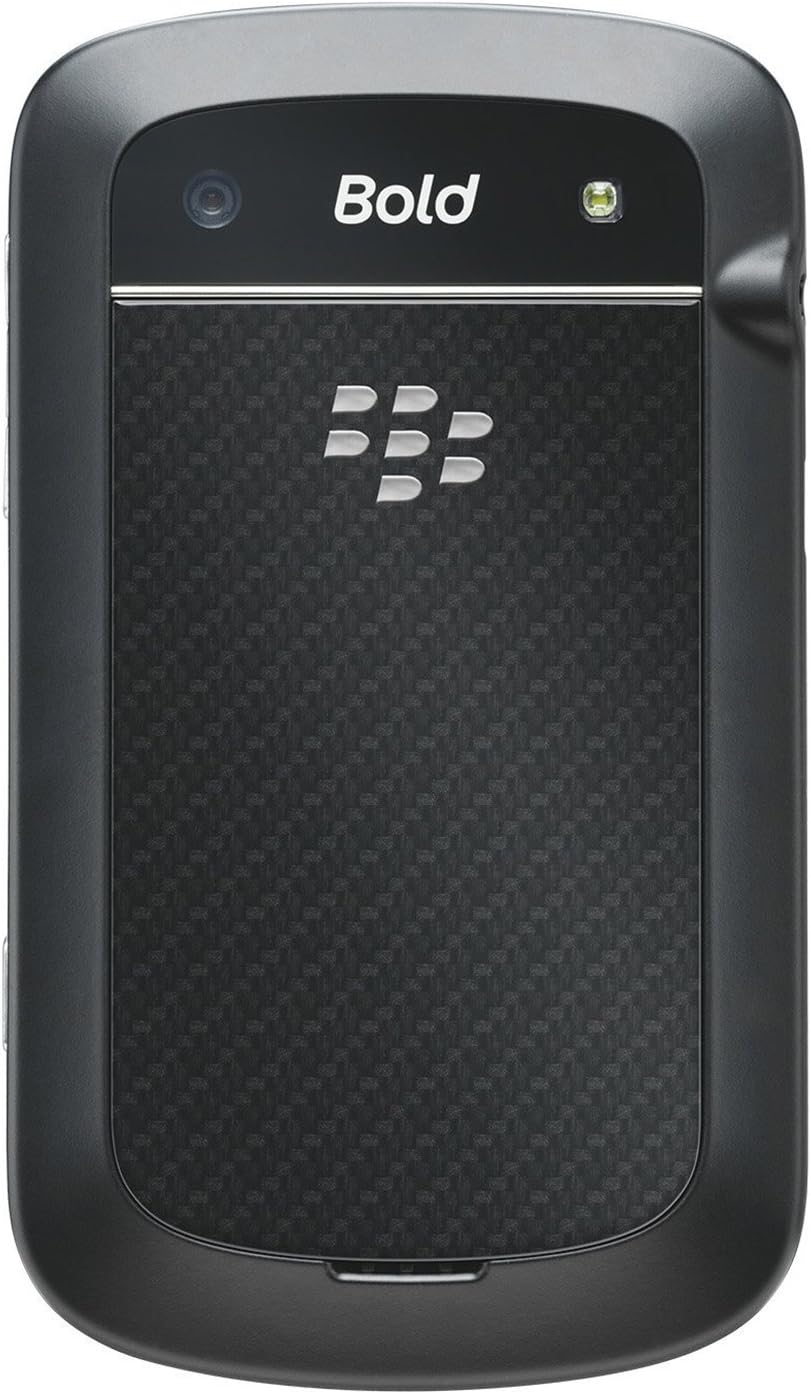
3.2 אחורי View
תמונה: אחורי view of the BlackBerry BB 9900 Bold Touch, featuring the 5-megapixel camera lens, LED flash, and the BlackBerry logo.
5MP מצלמה: Primary camera with autofocus and LED flash.
מכסה סוללה: Removable cover for battery and SIM card access.
3.3 צד View
תמונה: צד view of the BlackBerry BB 9900 Bold Touch, illustrating the placement of the volume control buttons and a customizable convenience key.
לחצני עוצמת הקול: כוונון רמות השמע.
Convenience Key: כפתור קיצור דרך הניתן להתאמה אישית.
4. התקנה
4.1 הכנסת כרטיס ה-SIM
הסר את מכסה הסוללה מגב המכשיר.
אתר את חריץ כרטיס ה- SIM.
הכנס את כרטיס ה-SIM כאשר המגעים הזהובים פונים כלפי מטה והפינה החתוכה מיושרת עם החריץ.
ודא שכרטיס ה-SIM מחובר היטב למקומו.
4.2 הכנסת הסוללה
After inserting the SIM card, align the battery's gold contacts with the contacts in the battery compartment.
לחץ בעדינות את הסוללה למקומה עד שתישמע קליק.
החזר את מכסה הסוללה למקומו.
4.3 טעינת המכשיר
Connect the USB cable to the charging port on your device.
Plug the other end of the USB cable into the wall charger, then into a power outlet.
יש לאפשר למכשיר להיטען במלואו לפני השימוש הראשון. מחוון הסוללה על המסך יציג את מצב הטעינה.
4.4 הפעלה/כיבוי
כדי להפעיל: Press and hold the Power/Lock button (usually located on the top edge) until the BlackBerry logo appears.
כדי לכבות: Press and hold the Power/Lock button until the 'Power Off' option appears on the screen. Tap 'Power Off' to confirm.
5. הוראות הפעלה
5.1 ניווט מסך מגע
בֶּרֶז: Touch the screen briefly to open applications, select items, or activate buttons.
לִגנוֹב: Drag your finger across the screen to scroll through lists or switch between home screen panels.
צביטה-להגדלה: Use two fingers to zoom in or out on photos, web דפים, או מפות.
5.2 שימוש במקלדת QWERTY
The physical QWERTY keyboard allows for fast and accurate text entry. Each key corresponds to a letter, number, or symbol. Use the 'Alt' key for alternate characters and the 'Shift' key for capitalization.
5.3 ביצוע שיחות
From the home screen, tap the Phone icon or press the green Call button.
Enter the phone number using the keyboard.
לחץ על כפתור השיחה הירוק כדי להתחיל את השיחה.
כדי לסיים שיחה, לחץ על כפתור סיום שיחה האדום.
5.4 שליחת הודעות
Tap the Messages icon from the home screen.
Select 'Compose New' or similar option.
הזן את מספר הנמען או בחר מתוך אנשי הקשר.
Type your message using the QWERTY keyboard.
Tap 'Send'.
5.5 שימוש במצלמה
הקש על סמל המצלמה כדי לפתוח את אפליקציית המצלמה.
מסגר את התמונה שלך באמצעות המסך כ viewמוֹצֵא.
Tap the screen or press the convenience key (if configured) to take a photo.
The 5MP camera features autofocus and an LED flash for improved image quality.
5.6 התחברות ל-Wi-Fi
Go to 'Options' > 'Networks and Connections' > 'Wi-Fi'.
הפעל את ה-Wi-Fi. המכשיר יסרוק אחר רשתות זמינות.
בחר את הרשת הרצויה והזן את הסיסמה אם תתבקש.
Once connected, the Wi-Fi indicator will appear in the status bar.
5.7 Using NFC (Near Field Communication)
The BlackBerry BB 9900 Bold Touch supports NFC for short-range wireless communication. This allows for quick pairing with compatible accessories or sharing data with other NFC-enabled devices by tapping them together.
ודא ש-NFC מופעל בהגדרות המכשיר שלך.
Hold your device close to another NFC-enabled device or tag.
Follow on-screen prompts to complete the desired action (e.g., pairing, data transfer).
6. תחזוקה
6.1 ניקוי המכשיר שלך
השתמש במטלית רכה ונטולת סיבים כדי לנגב את המסך וגוף המכשיר.
הימנעו משימוש בכימיקלים חזקים, חומרי ניקוי שוחקים או תרסיסים.
אין לחשוף את המכשיר ללחות יתר.
6.2 טיפול בסוללה
הימנעו מטמפרטורות קיצוניות, אשר עלולות לפגוע בביצועי הסוללה.
Use only the original or approved charger.
אין לנקב או לגרום נזק לסוללה.
6.3 עדכוני תוכנה
Periodically check for software updates to ensure your device has the latest features and security enhancements. Updates can typically be found in the device's 'Options' or 'Settings' menu under 'Software Updates'.
7. פתרון תקלות
7.1 המכשיר לא נדלק
ודא שהסוללה מוכנסת וטעונה כהלכה.
Connect the device to the charger and wait a few minutes before attempting to power on again.
אם הבעיה נמשכת, נסה להוציא ולהכניס מחדש את הסוללה.
7.2 בעיות קישוריות רשת
Check if your SIM card is correctly inserted and activated with your carrier.
Verify that cellular data or Wi-Fi is enabled in your device settings.
הפעל מחדש את המכשיר.
If using Wi-Fi, ensure your router is working and you have entered the correct password.
7.3 מסך מגע לא מגיב
הפעל מחדש את המכשיר.
ודא שהמסך נקי וחף מפסולת או לחות.
If the issue is intermittent, check for any recent software installations that might be causing conflicts.
8. מפרטים
תכונה
פְּרָט
שם הדגם
BB 9900
מַעֲרֶכֶת הַפעָלָה
מערכת ההפעלה בלקברי 7
לְהַצִיג
2.8-inch Capacitive Touchscreen, 640 x 480 Resolution
מעבד
Not specified (typically 1.2 GHz for this model)
אַיִל
768 מגה-בייט
אחסון פנימי
8 ג'יגה-בייט
מצלמה אחורית
5 MP, Autofocus, LED Flash
קישוריות
Wi-Fi 802.11 b/g/n, NFC, Bluetooth, GPS
תמיכה ברשת
Quad-band GSM/GPRS/EDGE, Tri-band HSPA+
מידות
4.53 x 2.6 x 0.41 אינץ' (115 x 66 x 10.5 מ"מ)
מִשׁקָל
4.6 אונקיות (130 גרם)
ג'ק אודיו
3.5 מ"מ
9. תמיכה ואחריות
9.1 תמיכת לקוחות
For technical assistance, troubleshooting beyond this manual, or service inquiries, please visit the official BlackBerry support website or contact your local service provider. Refer to the packaging or official webאתר לקבלת פרטי התקשרות ספציפיים.
9.2 מידע אחריות
Your BlackBerry BB 9900 Bold Touch is covered by a limited warranty. Please refer to the warranty card included in your product packaging or visit the official BlackBerry webבאתר לקבלת תנאים והגבלות מפורטים, כולל תקופת האחריות ופרטי הכיסוי. שמור את הוכחת הרכישה שלך לצורך תביעות אחריות.
Ask a question about this manual
Ask about setup, troubleshooting, compatibility, parts, safety, or missing instructions. Manuals+ will review the question and use this page’s manual context to help answer it.