
1. הקדמה
The EDUP EP-MS150N is a 150Mbps Wireless USB WiFi Adapter designed to provide high-speed wireless connectivity for your desktop or laptop computer. Featuring an external 5dBi antenna, it enhances signal reception and transmission, ensuring a stable and reliable connection to your wireless network. This adapter supports IEEE 802.11n, 802.11g, and 802.11b standards, operating on the 2.4 GHz frequency band.
2. מדריך התקנה
2.1 תכולת החבילה
- EDUP EP-MS150N Wireless USB WiFi Adapter
- Driver CD (may vary by package)
- מדריך התקנה מהירה
2.2 התקנת חומרה
- הכנס את המתאם: Locate an available USB port on your computer. Carefully insert the EDUP EP-MS150N USB WiFi Adapter into the USB port. Ensure it is firmly seated.
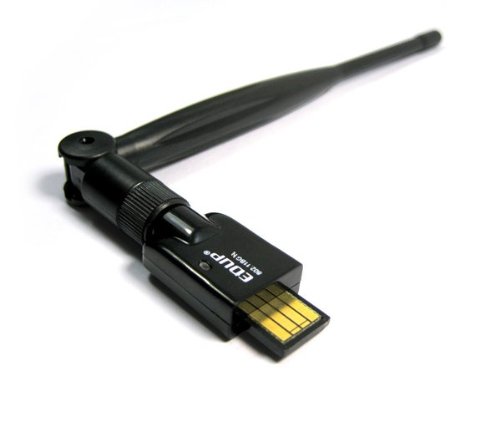
Image: The EDUP EP-MS150N Wireless USB WiFi Adapter, showing its compact design and USB connector, ready for insertion into a computer's USB port.
2.3 התקנת דרייבר
For optimal performance and compatibility, it is recommended to install the latest drivers for your operating system.
- שימוש בתקליטור מנהל ההתקן: If your package includes a driver CD, insert it into your computer's CD-ROM drive. Follow the on-screen instructions to install the drivers.
- הורדת דרייברים באינטרנט: If you do not have a CD drive or wish to obtain the latest drivers, visit the official EDUP support website. Navigate to the support section, find your model (EP-MS150N), and download the appropriate drivers for your operating system (Windows, macOS, Linux). Run the downloaded installer and follow the prompts.
- ודא התקנה: After installation, check your computer's Device Manager (Windows) or System Information (macOS/Linux) to ensure the adapter is recognized and functioning correctly.
2.4 חיבור לרשת אלחוטית
- הגדרות רשת גישה: On your computer, open the wireless network settings. This is typically found in the system tray (Windows) or menu bar (macOS/Linux).
- סרוק אחר רשתות: The adapter will automatically scan for available wireless networks.
- בחר רשת: Choose your desired wireless network (SSID) from the list.
- הזן סיסמה: If prompted, enter the network security key or password (WPA/WPA2-PSK).
- לְחַבֵּר: Click 'Connect' to establish a connection. Once connected, you should have internet access.
3. הוראות הפעלה
3.1 Checking Connection Status
To verify your wireless connection status:
- חלונות: Click the network icon in the system tray. It will display the name of the connected network and its status.
- MacOS: Click the Wi-Fi icon in the menu bar. It will show the connected network.
- לינוקס: Check the network manager applet in your desktop environment.
3.2 Disconnecting from a Network
To disconnect from a wireless network:
- Access your network settings as described above.
- Select the currently connected network.
- Choose the 'Disconnect' option.
4. תחזוקה
4.1 עדכוני מנהלי התקנים
Periodically check the EDUP official website for updated drivers. Keeping your drivers current can improve performance, stability, and compatibility with new operating system versions or network technologies.
4.2 טיפול גופני
- שמרו על ניקיון המתאם ואבק. השתמשו במטלית רכה ויבשה לניקוי.
- הימנע מחשיפת המתאם לטמפרטורות קיצוניות, לחות או אור שמש ישיר.
- אל תנסה לפרק או לתקן את המתאם בעצמך, שכן פעולה זו תגרום לביטול האחריות.
5. פתרון תקלות
5.1 אין גישה לאינטרנט
- בדיקת נתב: ודא שהנתב האלחוטי שלך דולק ופועל כראוי.
- אמת חיבור: Confirm that the adapter is properly connected to your computer's USB port and that you are connected to the correct wireless network.
- הפעל מחדש מכשירים: Try restarting your computer and your wireless router.
- בדיקת נהג: Ensure the drivers are correctly installed and up to date. Reinstall them if necessary.
5.2 מהירות חיבור איטית
- חוזק אות: Move closer to your wireless router to improve signal strength. Obstacles like walls and large appliances can degrade signal quality.
- הַפרָעָה: Other electronic devices (e.g., cordless phones, microwaves) operating on the 2.4 GHz band can cause interference. Try changing your router's wireless channel.
- הגדרות נתב: Ensure your router is configured for optimal performance (e.g., using WPA2 encryption, appropriate channel width).
- עדכון דרייבר: ודא שיש לך את הדרייברים העדכניים ביותר מותקנים.
5.3 מתאם לא זוהה
- יציאת USB: נסה לחבר את המתאם ליציאת USB אחרת במחשב שלך.
- אתחל מחשב: הפעלה מחדש פשוטה יכולה לעתים קרובות לפתור בעיות זיהוי.
- התקנת דרייבר: Reinstall the drivers for the adapter.
- מנהל ההתקנים (Windows): Check Device Manager to see if the adapter appears under 'Network adapters' or 'Other devices'. If it has a yellow exclamation mark, reinstall drivers.
6. מפרטים
| מספר דגם | EP-MS150N |
| מותג | EDUP |
| תקנים אלחוטיים | IEEE 802.11n, IEEE 802.11g, IEEE 802.11b |
| טווח תדרים | 2.4 - 2.4835 גיגה-הרץ |
| מהירות אלחוטית | עד 150Mbps |
| סוג אנטנה | אנטנה 5dBi חיצונית |
| מִמְשָׁק | USB |
| מרחק עבודה אפקטיבי | Up to 200 meters indoors, 830 meters outdoors (environment dependent) |
| UPC | 847231017403 |
7. אחריות ותמיכה
7.1 אחריות למוצר
EDUP products typically come with a limited warranty. Please refer to the warranty card included with your product or visit the official EDUP website for detailed warranty terms and conditions specific to the EP-MS150N model. Keep your purchase receipt as proof of purchase for warranty claims.
7.2 תמיכה טכנית
For technical assistance, driver downloads, or further inquiries, please visit the official EDUP support website. You may find FAQs, troubleshooting guides, and contact information for customer service there. When contacting support, please have your product model number (EP-MS150N) and a description of your issue ready.