
מָבוֹא
The ADATA S102PRO is a high-performance USB 3.0 flash drive designed for fast and reliable data storage and transfer. Its durable design and high-speed interface make it ideal for everyday use, allowing you to carry important files, documents, photos, and videos with ease.
הגדרה
Follow these steps to begin using your ADATA S102PRO USB Flash Drive:
- זיהוי יציאת USB: Locate an available USB port on your computer. For optimal performance, use a USB 3.0 port (often colored blue internally). The ADATA S102PRO is backward compatible with USB 2.0 ports, but data transfer speeds will be limited to USB 2.0 rates.
- הסר את הכובע: Carefully remove the protective cap from the USB flash drive to expose the USB connector.
- הכנס את הכונן: Insert the USB connector firmly into the USB port on your computer. Ensure it is inserted correctly; do not force it.
- זיהוי מערכת: Your operating system (Windows, macOS, Linux) should automatically detect and install the necessary drivers. A notification may appear indicating that the device is ready for use. The drive will typically appear as a removable disk or volume in your file חוֹקֵר.
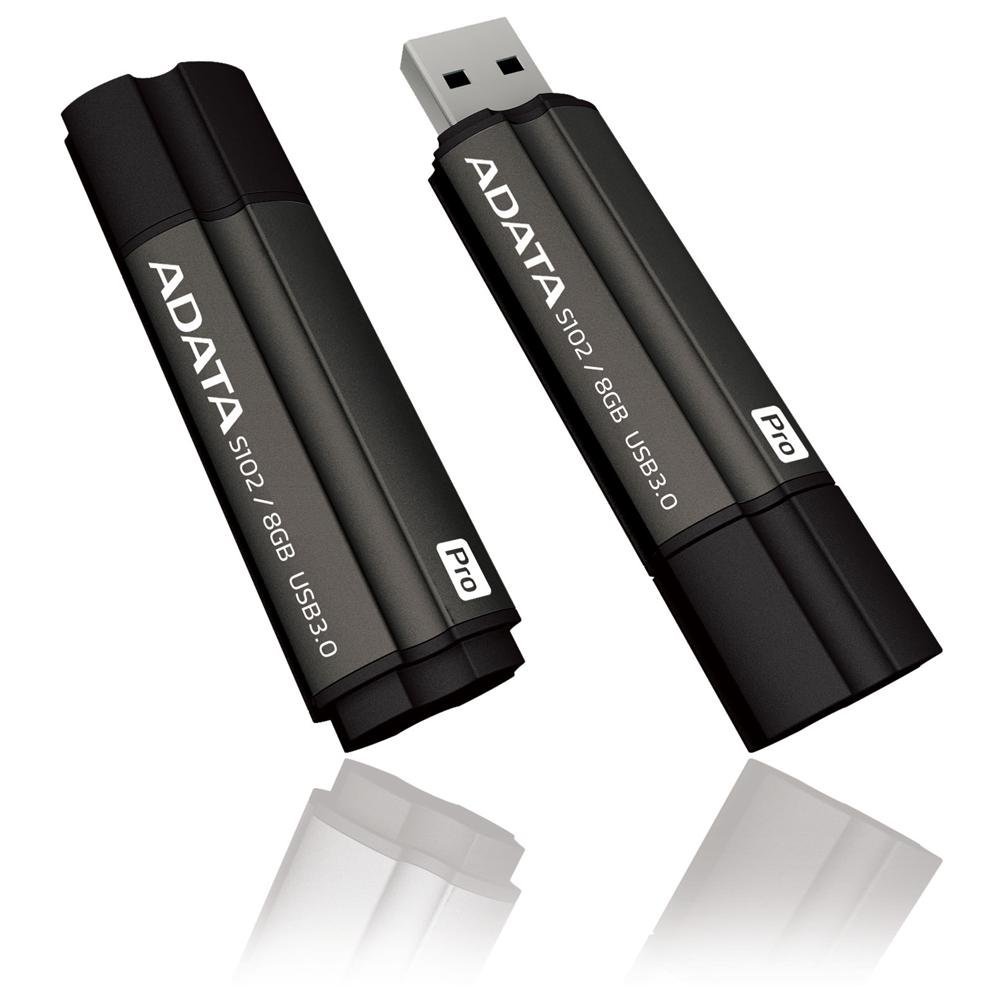
Image: The ADATA S102PRO USB Flash Drive shown with its protective cap on and with the cap removed, revealing the USB 3.0 connector. This illustrates the physical appearance and how to prepare the drive for insertion.
פועל
Once the ADATA S102PRO is recognized by your computer, you can begin transferring files:
- גישה לכונן:
- חלונות: Open "This PC" or "My Computer" and locate the drive listed under "Devices and drives" (e.g., "Removable Disk" or a drive letter like E:).
- MacOS: The drive icon will appear on your desktop or in the Finder sidebar under "Locations."
- מעביר Files:
- כדי להעתיק files אֶל the flash drive, drag and drop them from your computer's folders into the flash drive's window.
- כדי להעתיק files מִן the flash drive, drag and drop them from the flash drive's window to a folder on your computer.
- You can also use the standard copy (Ctrl+C / Command+C) and paste (Ctrl+V / Command+V) functions.
- הסרה בטוחה של הכונן: It is crucial to safely eject the flash drive before physically removing it to prevent data corruption.
- חלונות: Click the "Safely Remove Hardware and Eject Media" icon in the system tray (bottom-right corner), then select your flash drive and click "Eject." Wait for the "Safe to Remove Hardware" message.
- MacOS: Drag the drive icon from the desktop to the Trash, or click the Eject button next to the drive name in the Finder sidebar. Wait for the icon to disappear before removing the drive.
תַחזוּקָה
Proper care will help ensure the longevity and reliability of your ADATA S102PRO USB Flash Drive:
- הגן על המחבר: Always keep the protective cap on the USB connector when the drive is not in use to prevent dust, dirt, and physical damage.
- הימנע מתנאים קיצוניים: Do not expose the drive to extreme temperatures, direct sunlight, high humidity, or strong magnetic fields.
- טפל בזהירות: הימנע מהפלת הכונן או מחשיפתו לפגיעות חזקות.
- Do Not Remove During Transfer: Never unplug the drive while data is being read from or written to it. Always follow the safe removal procedure.
- גיבויים רגילים: While flash drives are reliable, it is always recommended to back up critical data to another storage device or cloud service.
פתרון בעיות
If you encounter issues with your ADATA S102PRO, try the following solutions:
- כונן לא מזוהה:
- ודא שהכונן מוכנס במלואו ליציאת ה-USB.
- נסה יציאת USB אחרת במחשב שלך.
- Test the drive on another computer to rule out a computer-specific issue.
- Check your computer's Device Manager (Windows) or System Information (macOS) to see if the drive is listed, even if it doesn't appear in File חוקר/מוצא.
- מהירויות העברה איטיות:
- Ensure you are connected to a USB 3.0 port for optimal performance. USB 2.0 ports will limit speeds.
- העברת הרבה דברים קטנים fileיכול להיות איטי יותר מאשר העברת כמה קבצים גדולים files.
- סגור יישומים אחרים שעשויים להשתמש במשאבי מערכת או לבצע פעולות בדיסק.
- לא ניתן לכתוב Files לנהיגה:
- בדוק אם הכונן מלא. מחק קבצים מיותרים. fileאו להעביר אותם למיקום אחר.
- להבטיח את file system (e.g., FAT32, NTFS, exFAT) is compatible with your operating system and allows writing. If formatted as NTFS on macOS, you may only have read access without third-party software.
- Check for any software-based write protection or permissions issues on your computer.
מפרטים
| מותג | ADATA |
| שם הדגם | S102PRO |
| מספר דגם | AT806-4G-CPK |
| קיבולת אחסון זיכרון | 4 ג'יגה-בייט |
| ממשק חומרה | USB 3.0 (תאימות לאחור עם USB 2.0) |
| יַצרָן | A-DATA TECHNOLOGY (USA) CO. L |
| UPC | 842243005080 |
| ASIN | B004AVOGW8 |
אחריות ותמיכה
For detailed warranty information, product registration, and technical support, please visit the official ADATA webאתר. בדרך כלל ניתן למצוא שם משאבי תמיכה, שאלות נפוצות ופרטי קשר של שירות לקוחות.
ADATA Official Webאֲתַר: www.adata.com