
1. התקנה
1.1 פריקה ובדיקה ראשונית
Carefully remove your ASUS K52F-A2B laptop from its packaging. Inspect the laptop and all accessories for any signs of damage. The package should contain the laptop, AC adapter, power cord, and documentation.
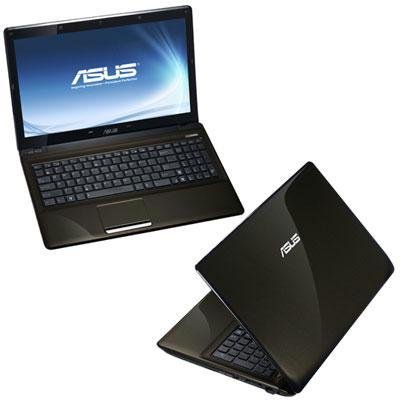
Image 1.1: The ASUS K52F-A2B laptop. This image shows the closed laptop from an angle, highlighting its dark brown finish and sleek design.
1.2 חיבור מתאם AC
Before initial use, connect the AC adapter to the laptop and a power outlet. This ensures the battery is charged and provides stable power for setup.
- חבר את מתאם ה-AC למחבר החשמל בצד המחשב הנייד.
- חבר את כבל החשמל למתאם ה-AC.
- חבר את הקצה השני של כבל החשמל לשקע חשמל מוארק.
1.3 הפעלה ראשונית
Once the AC adapter is connected, open the laptop lid and press the power button. The laptop will begin its initial boot sequence. Follow the on-screen instructions to complete the operating system setup (Windows 7 Professional 64-bit).
2. Operating Your ASUS K52F-A2B Laptop
2.1 הפעלה/כיבוי ומצב שינה
- הפעלה: לחץ על לחצן ההפעלה הממוקם מעל המקלדת.
- כיבוי: Click the Start button, then select 'Shut down'.
- מצב שינה: Close the laptop lid or select 'Sleep' from the Start menu. Press the power button or any key to wake the laptop.
2.2 שימוש במקלדת ובמשטח המגע
The ASUS K52F-A2B features a full-sized keyboard and a multi-touch touchpad.
- מִקלֶדֶת: Standard QWERTY layout with function keys (Fn) for brightness, volume, and other system controls.
- לוח מגע: Supports multi-touch gestures for scrolling, zooming, and navigation. Refer to the operating system's help for detailed gesture information.
2.3 חיבור התקנים חיצוניים
Your laptop provides various ports for connecting external devices:
- יציאות USB: לחיבור התקני USB כגון עכברים, מקלדות ואחסון חיצוני.
- יציאת HDMI: Connects to external displays or TVs for high-definition video and audio output.
- יציאת VGA: Connects to older external monitors or projectors.
- שקעי אודיו: עבור אוזניות ומיקרופונים.
- יציאת אתרנט: לחיבורי רשת קווית.
2.4 Using the Optical Disk Drive
The laptop includes a Super Multi Optical Disk Drive for reading and writing CDs and DVDs.
- לחץ על כפתור הוצאה בכונן כדי לפתוח את המגש.
- הנח תקליטור או DVD על המגש כאשר צד התווית פונה כלפי מעלה.
- Gently push the tray back into the laptop until it clicks shut.
3. תחזוקה
3.1 ניקוי המחשב הנייד
Regular cleaning helps maintain the laptop's appearance and functionality.
- מָסָך: השתמש קלות במטלית רכה נטולת מוך דampשטפו במים או בחומר לניקוי מסך. אין לרסס נוזל ישירות על המסך.
- מקלדת ו-Casing: השתמשו במטלית רכה ויבשה. עבור לכלוך עיקש, נגבו קלות במטליתampened with mild soap and water can be used. Ensure the laptop is powered off and unplugged before cleaning.
- פתחי אוורור: Use compressed air to clear dust from the cooling vents to prevent overheating.
3.2 טיפול בסוללה
כדי למקסם את חיי הסוללה והביצועים:
- הימנעו מפריקת הסוללה באופן מלא לעתים קרובות.
- אחסנו את המחשב הנייד במקום קריר ויבש כאשר אינו בשימוש למשך תקופות ממושכות.
- אם מאחסנים למשך זמן רב, יש לטעון את הסוללה לכ-50% לפני האחסון.
3.3 עדכוני תוכנה
Regularly update your operating system and drivers to ensure optimal performance and security. Check the ASUS support website for the latest drivers for your K52F-A2B model.
4. פתרון תקלות
This section addresses common issues you might encounter with your ASUS K52F-A2B laptop.
4.1 בעיות חשמל
- המחשב הנייד לא נדלק: Ensure the AC adapter is securely connected to both the laptop and a working power outlet. Check if the power outlet is functional. If the battery is completely drained, allow it to charge for a few minutes before attempting to power on.
- המחשב הנייד נכבה באופן בלתי צפוי: This could indicate overheating. Ensure cooling vents are clear and the laptop is on a hard, flat surface.
4.2 בעיות תצוגה
- אין תצוגה על המסך: Connect an external monitor to the VGA or HDMI port to check if the issue is with the laptop's internal display. Press Fn+F8 to toggle display output modes.
- תצוגה עמומה: Adjust screen brightness using the Fn+F5 (dim) and Fn+F6 (bright) function keys.
4.3 בעיות קישוריות
- Wi-Fi לא מתחבר: Ensure Wi-Fi is enabled (often via a function key, e.g., Fn+F2). Check network settings in Windows.
- התקן USB לא מזוהה: נסה לחבר את ההתקן ליציאת USB אחרת. ודא שמנהלי ההתקן מותקנים.
4.4 Operating System Recovery
The ASUS K52F-A2B comes with Windows 7 Professional. For system recovery or reinstallation, it is recommended to use the recovery partition or create recovery media as instructed by ASUS. Note that official support for downgrading to Windows XP Pro may be limited, and recovery media for Windows 7 Pro might need to be created by the user.
5. מפרט טכני
| תכונה | מִפרָט |
|---|---|
| מספר דגם | K52F-A2B |
| מעבד | Intel Core i3-350M (2.26 GHz) |
| מַעֲרֶכֶת הַפעָלָה | Windows 7 Professional 64 סיביות |
| לְהַצִיג | 15.6-inch HD (1366x768) LED |
| גרָפִיקָה | Intel GMA HD (Integrated) |
| זיכרון RAM | 3 GB DDR3 1066MHz (Max 8GB) |
| אִחסוּן | 320 GB Hard Drive (5400 RPM) |
| כונן אופטי | DVD SuperMulti |
| קישוריות אלחוטית | 802.11bgn |
| נמלים | HDMI, VGA, USB, Audio Jacks |
| Webפִּקָה | 0.3 מגה פיקסל |
| מִשׁקָל | 5.8 פאונד |
6. אחריות ותמיכה
6.1 מידע אחריות
Your ASUS K52F-A2B laptop comes with the following warranty coverage:
- אחריות גלובלית לשנתיים
- 1-Year Accidental Damage Warranty
- 30-Day Zero Bright Dot Guarantee
- 2-way FREE shipping for repairs
6.2 תמיכה טכנית
לסיוע טכני, הורדות מנהלי התקנים או מידע נוסף, אנא בקרו באתר התמיכה הרשמי של ASUS website. 24/7 technical support is available as part of your warranty.
For the most up-to-date support contact information, please refer to the documentation included with your product or visit www.asus.com/support.