
1. הקדמה
The ASUS USB-N10 Wireless-N USB Adapter provides a convenient solution for adding or upgrading wireless connectivity to your computer. This compact adapter supports IEEE 802.11b/g/n standards, offering wireless data rates of up to 150Mbps for both transmit and receive functions. It features a fast USB 2.0 interface and includes software-based WPS (Wi-Fi Protected Setup) button support for easy and secure network connections.
2. תכונות עיקריות
- Excellent Connection: Strong and convenient USB connection for fast downloads, rapid file transfers, and low-latency media streaming.
- PSP Xlink Kai Support: Play system games with PSP users worldwide via the internet.
- EZ WPS: Improve Wi-Fi security with easy WPS Wizard.
- תמיכה במערכת ההפעלה: Compatible with Windows 7 and Mac 10.6 Operating Systems (and newer versions).
- תקנים: IEEE 802.11b, IEEE 802.11g, IEEE 802.11n.
- ממשק מארח: USB 2.0.
- תדירות הפעלה: 2.4 - 2.5 GHz.
- אַנטֶנָה: 2x Internal Antenna (MIFA antenna on USB connector).
- מצבי הפעלה: 11 for N. America, 14 Japan, 13 Europe (ETSI).
- אִפְנוּן: OFDM - BPSK, QPSK, 16-QAM, 64-QAM, DBPSK, DQPSK, CCK.
- לָנוּעַ: עד 150 מטר.
- קצב נתונים: 802.11n: Tx - 150Mbps (Max); Rx - 150Mbps (Max), 802.11g: 6, 9, 12, 18, 24, 36, 48, 54Mbps, 802.11b: 1, 2, 5.5, 11Mbps.
- הגדרה אלחוטית: Diagnose and configure your wireless network settings with on-line troubleshooting feature.
- WPS Wizard: High-speed wireless network is just a few clicks away.
- רגישות מקלט: -84 dBm @11 Mbps, -70 dBm @54 Mbps, -67 dBm @64-QAM, 20MHz channel spacing, -64 dBm @64-QAM, 40MHz channel spacing.
3. תכולת החבילה
The ASUS USB-N10 Wireless-N USB Adapter package typically includes:
- ASUS USB-N10 Wireless-N USB Adapter
- מדריך התחלה מהירה / מדריך הוראות
- Driver CD or USB Drive (containing necessary software)
4. התקנה והתקנה
Follow these steps to install your ASUS USB-N10 Wireless-N USB Adapter:
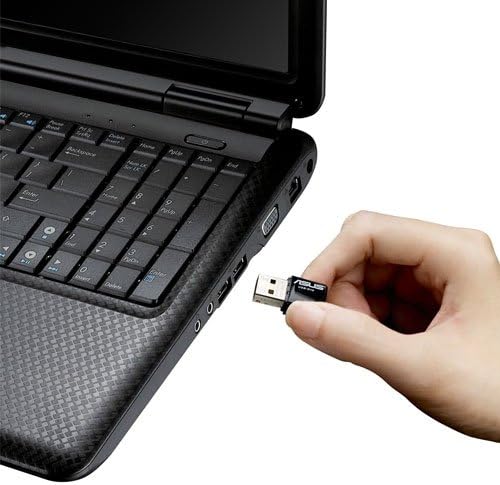
- הכנס את המתאם: Carefully plug the ASUS USB-N10 adapter into an available USB 2.0 port on your computer. For optimal performance, especially if your computer has USB 3.0 ports, consider using one of those, though the adapter itself is USB 2.0.
- התקן דרייברים:
- Insert the provided driver CD or USB drive into your computer.
- Locate and double-click the 'Setup.exe' file.
- Follow the on-screen instructions to complete the Wi-Fi driver installation. It is recommended to use the manufacturer's drivers for best compatibility and performance.
- התחברות לרשת Wi-Fi:
- Once the drivers are installed, click on the network icon in your system tray (usually in the bottom-right corner of your screen on Windows, or top-right on Mac).
- בחר את רשת ה-Wi-Fi הרצויה מרשימת הרשתות הזמינות.
- הזן את מפתח אבטחת הרשת (סיסמה) אם תתבקש.
- לחץ על 'התחבר'. כעת המחשב שלך אמור להיות מחובר לרשת ה-Wi-Fi.

5. הפעלת המתאם
Once installed and connected, the ASUS USB-N10 adapter operates seamlessly in the background, providing wireless internet access. You can manage your wireless connection through your operating system's network settings.
5.1. שימוש ב-WPS (Wi-Fi Protected Setup)
The adapter supports WPS for quick and secure connection to compatible routers. If your router has a WPS button:
- לחץ על לחצן WPS בנתב האלחוטי שלך.
- Within two minutes, activate the WPS function on your computer. This is typically done through the ASUS utility software installed with the drivers, or via your operating system's network settings.
- The adapter will automatically connect to the router securely.
6. תחזוקה וטיפול
- שמור על ניקיון: Gently wipe the adapter with a soft, dry cloth to remove dust. Avoid using liquid cleaners.
- הימנע מנזק פיזי: Handle the adapter with care. Avoid dropping it or exposing it to excessive force, which could damage the USB connector or internal components.
- מיקום אופטימלי: For best signal strength, ensure the adapter is not obstructed by other objects or placed in an area with high electromagnetic interference.
- עדכוני דרייבר: בדוק מעת לעת את התמיכה של ASUS webאתר אינטרנט לקבלת מנהלי התקנים מעודכנים כדי להבטיח ביצועים אופטימליים ותאימות עם גרסאות מערכת ההפעלה העדכניות ביותר.
7. פתרון תקלות
7.1. אין חיבור אלחוטי
- בדוק חיבור פיזי: Ensure the USB-N10 adapter is securely plugged into a functioning USB port.
- התקנת דרייבר: Verify that the drivers were installed correctly. You can check this in your computer's Device Manager (Windows) or System Information (Mac). Reinstall drivers if necessary.
- הפעל Wi-Fi: Make sure your computer's Wi-Fi is enabled.
- סטטוס הנתב: Confirm that your wireless router is powered on and broadcasting a Wi-Fi signal.
7.2. מהירות חיבור איטית
- חוזק אות: Check the signal strength of your Wi-Fi network. Move closer to your wireless router or access point if the signal is weak.
- הַפרָעָה: מכשירים אלקטרוניים אחרים (מיקרוגל, טלפונים אלחוטיים) עלולים לגרום להפרעות. נסו למזער אותן או להרחיק את המתאם מהם.
- יציאת USB: Ensure the adapter is connected to a USB 2.0 port. While compatible with USB 1.1, performance will be significantly reduced.
- הגדרות נתב: Ensure your router is configured for 802.11n mode for maximum speed.
7.3. Adapter Not Recognized
- נסה יציאת USB אחרת: בדוק את המתאם ביציאת USB אחרת במחשב שלך.
- אתחל מחשב: הפעלה מחדש פשוטה יכולה לעתים קרובות לפתור בעיות זיהוי.
- התקן מחדש דרייברים: Uninstall any existing drivers for the adapter, restart your computer, and then perform a clean installation of the drivers.
8. מפרטים
| תְכוּנָה | עֵרֶך |
|---|---|
| מידות המוצר | 0.67 x 1.18 x 0.35 אינץ' |
| משקל פריט | 2.4 אונקיות |
| מספר דגם של פריט | USB-N10 |
| תאריך ראשון זמין | 26 במרץ, 2010 |
| יַצרָן | אסוס |


9. אחריות ותמיכה
9.1. כתב ויתור משפטי
Actual data throughput and Wi-Fi coverage will vary from network conditions and environmental factors, including the volume of network traffic, building material and construction, and network overhead, resulting in lower actual data throughput and wireless coverage.
9.2. תמיכת לקוחות
For technical support, warranty claims, or further assistance, please visit the official ASUS support website or contact their customer service. Refer to the product packaging or the ASUS webאתר לקבלת פרטי הקשר ופרטי האחריות העדכניים ביותר.