
מָבוֹא
This manual provides instructions for the setup, operation, and maintenance of your Microsoft Wireless Comfort Desktop 5000. This product combines a wireless keyboard and a wireless mouse designed for comfortable and efficient computer interaction.
The Microsoft Wireless Comfort Desktop 5000 features an ergonomically designed Comfort Curve keyboard and a mouse utilizing BlueTrack Technology for versatile surface tracking. It operates on a 2.4 GHz wireless connection, offering a reliable connection with a range of up to 30 feet.
מדריך התקנה
מה יש בקופסה
- Microsoft Wireless Comfort Desktop 5000 Keyboard
- Microsoft Wireless Comfort Desktop 5000 Mouse
- USB Mini-Transceiver
- 2 AA Alkaline Batteries (for keyboard)
- 1 AA Alkaline Battery (for mouse)
דרישות מערכת
- מַעֲרֶכֶת הַפעָלָה: Windows 8, Windows 7, Windows Vista, Windows XP (למעט Windows XP 64-bit)
- כונן קשיח: 100 מגה-בייט שטח פנוי
- נָמָל: יציאת USB
התקנת סוללה
The keyboard requires two AA alkaline batteries, and the mouse requires one AA alkaline battery. Batteries are included with the product.
- אתר את תא הסוללה בחלק התחתון של המקלדת והעכבר.
- פתח את מכסה תא הסוללות.
- הכניסו את סוללות ה-AA, תוך הקפדה על קוטביות נכונה (+/-).
- סגור היטב את מכסה תא הסוללות.
חיבור המשדר-מקלט האלחוטי
The wireless desktop set connects to your computer via a USB mini-transceiver.
- Locate the USB mini-transceiver. It may be stored in the mouse's battery compartment for transport.
- Insert the USB mini-transceiver into an available USB port on your computer.
- המחשב שלך אמור לזהות ולהתקין באופן אוטומטי את מנהלי ההתקנים הדרושים. תהליך זה עשוי להימשך מספר רגעים.
- לאחר התקנת הדרייברים, המקלדת והעכבר אמורים להיות מוכנים לשימוש.

Figure 1: The compact USB mini-transceiver for wireless connection.

Figure 2: The underside of the mouse showing the storage slot for the USB mini-transceiver.
הוראות הפעלה
תכונות מקלדת

איור 3: מלמעלה למטה view of the Comfort Curve keyboard layout.
- עיצוב עקומת נוחות: The keyboard features an ergonomist-approved Comfort Curve design that encourages a natural wrist posture, reducing strain during extended use.
- Quiet Touch Keys: Experience comfortable typing with low-profile, quiet-touch keys.
- משענת כף היד: A soft-touch palm rest is integrated to provide additional comfort and support for your wrists.
- רגליים נשלפות: Adjustable feet on the underside allow you to set the keyboard at a preferred angle for a more comfortable wrist posture.
- Taskbar Favorites for Windows 7: Easily access programs pinned to the Windows Taskbar using dedicated shortcut keys. The keys automatically adapt if you rearrange icons in the Taskbar.
- Media Center Controls: Control media playback directly from your keyboard using dedicated media keys (e.g., play/pause, volume up/down, mute).

איור 4: זוויתי view highlighting the integrated palm rest and Comfort Curve design.
תכונות עכבר

איור 5: זוויתי view of the wireless mouse.
- טכנולוגיית BlueTrack: The mouse utilizes Microsoft's BlueTrack Technology, combining the power of optical with the precision of laser for remarkable tracking on virtually any surface, including granite, carpet, and wood.
- גלילה לארבעה כיוונים: The tilt wheel allows for four-way scrolling (up, down, left, and right), enhancing efficiency and comfort when navigating documents or web דפים.
- כפתורים הניתנים להתאמה אישית: The mouse buttons can be customized for quick access to programs, files, media, and webpages you use most often. Refer to your operating system's mouse settings for customization options.
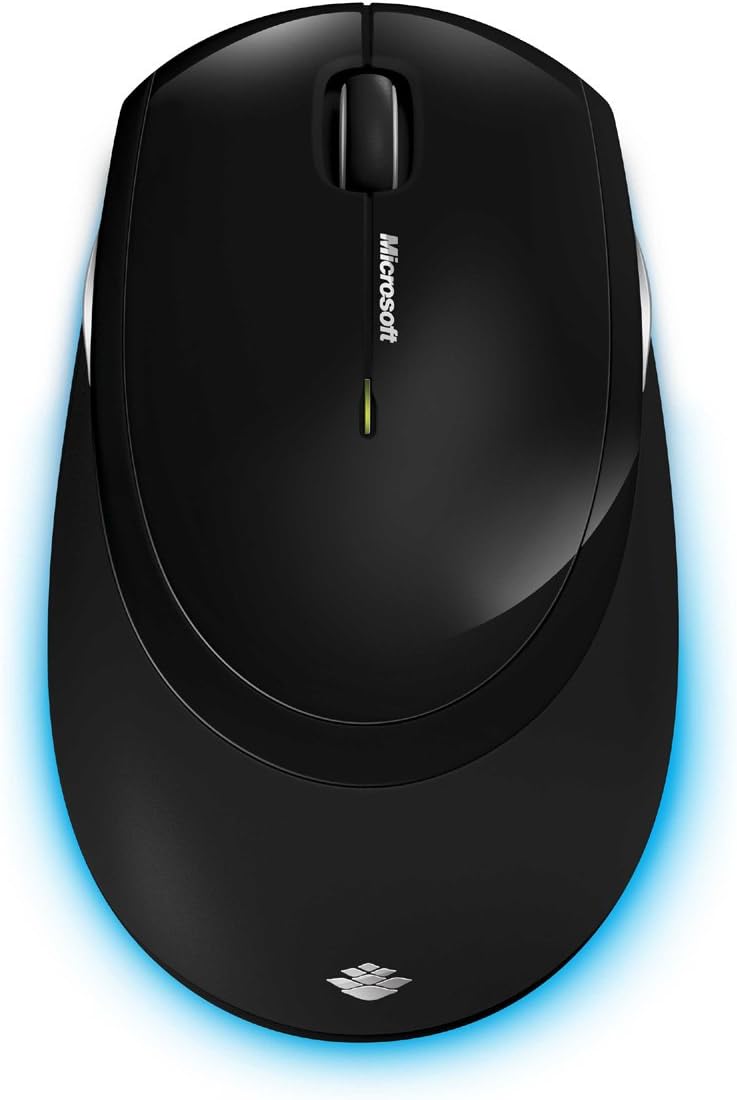
איור 6: מלמעלה למטה view of the wireless mouse.
תַחזוּקָה
ניקוי
To maintain the performance and appearance of your Microsoft Wireless Comfort Desktop 5000, follow these cleaning guidelines:
- Disconnect the USB transceiver from your computer before cleaning.
- השתמש במטלית רכה נטולת מוך מעט דampהסתיים במים או בתמיסת ניקוי עדינה.
- Avoid using harsh chemicals, abrasive cleaners, or solvents, as these can damage the surfaces.
- For the keyboard, you can use compressed air to remove dust and debris from between the keys.
- For the mouse, gently wipe the optical sensor area on the bottom to ensure optimal tracking performance.
החלפת סוללה
When the batteries are low, the indicator light on the keyboard or mouse may flash. Replace the batteries as described in the "Battery Installation" section under Setup Guide.
- Always use new, high-quality AA alkaline batteries.
- השלך סוללות משומשות בהתאם לתקנות המקומיות.
פתרון בעיות
בעיות חיבור
- No response from keyboard/mouse:
- Ensure the USB mini-transceiver is securely plugged into a working USB port on your computer.
- Check if the batteries in the keyboard and mouse are correctly installed and have sufficient charge. Replace if necessary.
- נסה לחבר את המשדר-מקלט ליציאת USB אחרת.
- הפעל מחדש את המחשב.
- הַפרָעָה:
- The 2.4 GHz wireless technology can be affected by other wireless devices. Move the transceiver closer to the keyboard and mouse, or move other wireless devices away.
- Avoid placing the transceiver near large metal objects, which can block the wireless signal.
בעיות מעקב עכבר
- Erratic or no tracking:
- Ensure the BlueTrack sensor on the bottom of the mouse is clean and free of debris.
- Try using the mouse on a different surface. While BlueTrack is versatile, highly reflective or transparent surfaces (like clear glass) may still cause issues.
מפרטים
| תכונה | פְּרָט |
|---|---|
| מותג | מיקרוסופט |
| מספר דגם | CSD-00001 |
| טכנולוגיית קישוריות | Wireless (USB Transceiver) |
| סוג אלחוטי | תדר רדיו 2.4 GHz |
| מכשירים תואמים | מחשב אישי |
| תאימות מערכת הפעלה | Windows 8, Windows 7, Windows Vista, Windows XP (למעט Windows XP 64-bit) |
| צֶבַע | שָׁחוֹר |
| משקל פריט | 2.9 פאונד |
| מידות המוצר (LxWxH) | 8.7 x 2.9 x 18.54 אינץ' |
| מקור כוח | מופעל על סוללה |
| סוללות נדרשות | 3 AA batteries (2 for keyboard, 1 for mouse) |
| תאריך זמין ראשון | 29 ביולי 2009 |
מידע על אחריות
Specific warranty details for the Microsoft Wireless Comfort Desktop 5000 are not provided within this manual. For comprehensive warranty information, including terms, conditions, and duration, please refer to the official Microsoft webהאתר או כרטיס האחריות המצורף לאריזת המוצר.
תְמִיכָה
For further assistance, technical support, or to download the latest drivers and software for your Microsoft Wireless Comfort Desktop 5000, please visit the official Microsoft support webאֲתַר:
You can also visit the Microsoft Store on Amazon for product information and related accessories:
מידע חשוב
כתב ויתור משפטי
Please note that the "Legal Disclaimer" provided with the product pertains to sales terms and conditions, such as return policies and shipping details, and is separate from the operational instructions in this user manual. For specific product usage and safety guidelines, please refer to the relevant sections of this manual.