
1. הקדמה
This user manual provides comprehensive instructions for the setup, operation, and maintenance of your new Microsoft Wired Keyboard, דגם ANB-00021. Please read this manual thoroughly before using the product to ensure optimal performance and longevity.

Figure 1: Microsoft Wired Keyboard (Model ANB-00021)
This image displays the Microsoft Wired Keyboard from an angled perspective, showcasing its full layout, including the numeric keypad and special function keys. The keyboard is black with a standard QWERTY layout and a wired USB connection.
2. תכונות מוצר
The Microsoft Wired Keyboard is designed for efficiency and durability, offering a comfortable typing experience. Key features include:
- Black, English/International Layout: Standard QWERTY layout suitable for various regions.
- קישוריות USB: Simple and reliable wired connection.
- עיצוב שטוח במיוחד: מקצוען רזהfile for a modern aesthetic and comfortable wrist position.
- Short Key Travel: Responsive keys with a short actuation distance for efficient typing.
- עמיד בפני התזות: Designed to withstand minor spills, protecting internal components.
- מקשי קיצור ייעודיים: Includes 5 special keys for quick access to common functions.
- מפתח מחשבון: Instant access to the calculator application.
- Gently Inclined Key Block: Ergonomic design for reduced strain during extended use.
- Classic Keyboard Layout: Familiar and intuitive key arrangement.
- הכנס והפעל: No software installation required; simply connect and use.
3. התקנה
Setting up your Microsoft Wired Keyboard is a straightforward process due to its Plug and Play functionality.
- פרק את המקלדת: הוציאו בזהירות את המקלדת מהאריזה שלה.
- חיבור ליציאת USB: Locate an available USB port on your computer (desktop PC, laptop, or compatible device). Insert the USB connector of the keyboard firmly into the USB port.
- זיהוי מערכת: Your operating system (Windows, macOS, Linux, etc.) will automatically detect and install the necessary drivers. This process usually takes a few seconds.
- מוכן לשימוש: Once the drivers are installed, the keyboard is ready for immediate use. No additional software or configuration is typically required.
For optimal performance, ensure the USB cable is not kinked or strained.
4. הוראות הפעלה
The Microsoft Wired Keyboard operates like any standard QWERTY keyboard, with additional convenience features.
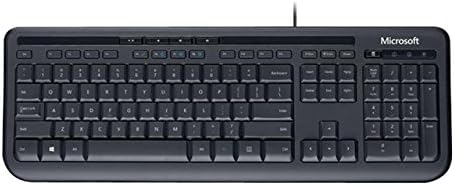
איור 2: מלמעלה למטה view of the keyboard layout
תמונה זו מספקת תמונה ברורה מלמעלה למטה view of the Microsoft Wired Keyboard, highlighting the full QWERTY key layout, function keys, numeric keypad, and the row of special hotkeys located above the function keys.
Standard Key Functions
- מקשים אלפאנומריים: משמש להקלדת אותיות, מספרים וסמלים.
- מקשי פונקציה (F1-F12): Perform various tasks depending on the active application or operating system.
- לוח מקשים נומרי: Located on the right, for efficient data entry.
- מקשי ניווט: Arrow keys, Home, End, Page Up, Page Down for cursor movement and scrolling.
- מקשי שינוי: Shift, Ctrl, Alt, Windows key for combination shortcuts.
Special Keys (Hotkeys)
The keyboard features a row of dedicated hotkeys above the function keys for quick access to multimedia and system functions:
- מקשי בקרת מדיה: Play/Pause, Stop, Previous Track, Next Track.
- Volume Control Keys: השתקה, הנמכת עוצמת קול, הגברת עוצמת קול.
- מפתח מחשבון: Instantly launches the system's calculator application.
- Other Programmable Keys: Some models may include additional keys that can be customized through operating system settings or Microsoft keyboard software (if available).
Familiarize yourself with these keys to enhance your productivity.
5. תחזוקה
Proper care and maintenance will extend the life of your Microsoft Wired Keyboard.
- ניקוי:
- נתק את המקלדת מהמחשב לפני ניקוי.
- השתמש קלות במטלית רכה נטולת מוך דampנשטפו במים או בתמיסת ניקוי עדינה ולא שוחקת.
- Wipe the surface of the keys and the keyboard casing.
- עבור אבק ופסולת בין המקשים, השתמש באוויר דחוס.
- אל תעשה immerse the keyboard in water or use harsh chemicals.
- עמידות בפני התזות: While the keyboard is splash-resistant, it is not waterproof. Avoid exposing it to excessive liquids. In case of a spill, disconnect immediately, wipe dry, and allow to air dry completely before reconnecting.
- אִחסוּן: כאשר המקלדת אינה בשימוש למשך תקופות ממושכות, יש לאחסן אותה בסביבה נקייה ויבשה הרחק מטמפרטורות קיצוניות.
- טיפול בכבלים: הימנע מכיפופים או קיפולים חדים בכבל ה-USB כדי למנוע נזק.
6. פתרון תקלות
אם נתקלת בבעיות עם המקלדת שלך, עיין בבעיות הנפוצות ובפתרונות הבאים:
| בְּעָיָה | סיבה אפשרית | פִּתָרוֹן |
|---|---|---|
| המקלדת לא מגיבה | חיבור USB רופף, יציאת USB שגויה, בעיית דרייבר. | ודא שכבל ה-USB מחובר היטב ליציאת USB תקינה. נסה יציאת USB אחרת. הפעל מחדש את המחשב. |
| מקשים ספציפיים לא עובדים | Debris under the key, key mechanism damage. | Use compressed air to clear debris. If the key is physically damaged, contact support. |
| מקשי קיצור לא פועלים | Software conflict, operating system settings. | Ensure your operating system is up to date. Check keyboard settings in your OS control panel. |
| Unexpected behavior after liquid exposure | Internal components affected by liquid. | Immediately disconnect the keyboard. Allow it to dry completely for at least 24-48 hours in a well-ventilated area before attempting to reconnect. If issues persist, the keyboard may be damaged. |
If the problem persists after trying these solutions, please refer to the Support section.
7. מפרטים
Detailed technical specifications for the Microsoft Wired Keyboard (Model ANB-00021):
| תְכוּנָה | פְּרָט |
|---|---|
| מספר דגם | ANB-00021 |
| מותג | מיקרוסופט |
| טכנולוגיית קישוריות | USB (קווית) |
| תיאור מקלדת | Standard QWERTY, USB |
| תכונה מיוחדת | עמיד בפני התזות |
| צֶבַע | שָׁחוֹר |
| מספר מפתחות | 600 (Note: This number is as per product specifications and may refer to total keypresses lifespan or a specific internal metric, not physical keys.) |
| תאורה אחורית של המקלדת | None (Single Color support listed, but typically implies no backlighting for this model) |
| סִגְנוֹן | מוֹדֶרנִי |
| חוֹמֶר | פּלָסטִי |
| מידות המוצר (L x W x H) | 8.66 x 3.15 x 1.18 אינץ' (כ-22 x 8 x 3 ס"מ) |
| משקל פריט | 1.31 פאונד (כ-0.59 ק"ג) |
| מכשירים תואמים | Laptop, PC, Tablet, Smartphone (via appropriate adapters if needed) |
| יַצרָן | מיקרוסופט |
| תאריך ראשון זמין | 9 במרץ, 2011 |
8. אחריות ותמיכה
For warranty information and technical support regarding your Microsoft Wired Keyboard, please refer to the official Microsoft support channels.
- תמיכה מקוונת: בקרו באתר התמיכה הרשמי של מיקרוסופט webאתר לשאלות נפוצות, מדריכים לפתרון בעיות והורדות מנהלי התקנים.
- צור קשר עם התמיכה: For direct assistance, contact Microsoft customer service through their provided contact methods (phone, chat, email).
- הוכחת רכישה: שמור תמיד את הוכחת הרכישה שלך לצורך תביעות אחריות.
Specific warranty terms and conditions may vary by region and purchase date. Please consult the documentation included with your product or the Microsoft webבאתר לקבלת פרטי האחריות המדויקים והמעודכנים ביותר.