
מָבוֹא
The Nyko 80610 Airflo PC Game Controller is designed to enhance your PC and Mac gaming experience. This controller features an ergonomic design for comfortable use and an integrated airflow system to help keep your hands cool during extended gaming sessions. This manual provides detailed instructions for setting up, operating, maintaining, and troubleshooting your Airflo controller.
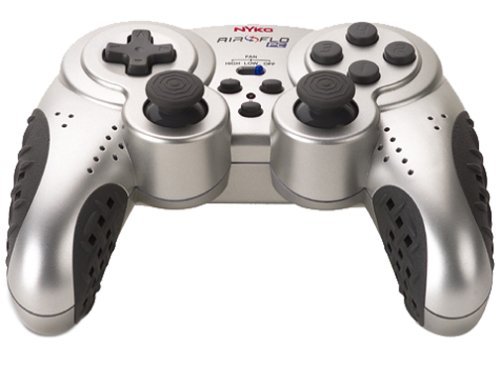
Image of the Nyko 80610 Airflo PC Game Controller, showcasinהעיצוב הארגונומי ופריסת הכפתורים שלו.
הגדרה
תוכן החבילה
- Nyko 80610 Airflo PC Game Controller (Set of two 12-button gamepads)
- Driver Installation CD (if applicable)
- מדריך למשתמש (מסמך זה)
דרישות מערכת
- Operating System: Windows 2000/XP/Vista/7/8, Mac-Intel OS X
- יציאת USB זמינה
הַתקָנָה
- Ensure your computer is powered on and running.
- אתר יציאת USB זמינה במחשב שלך.
- Plug the USB connector of the Nyko Airflo controller into the USB port.
- For most Windows operating systems, the controller will be automatically detected and drivers installed. If prompted, follow the on-screen instructions.
- If automatic installation does not occur, insert the provided Driver Installation CD into your computer's optical drive and follow the installation wizard.
- Once installed, the controller is ready for use. It is recommended to have the gamepad plugged in and ready before launching a game to ensure proper recognition.
הוראות הפעלה
בקרות בסיסיות
The Nyko Airflo controller features a standard gamepad layout, including:
- Two Analog Sticks: For precise movement and camera control.
- D-Pad (Directional Pad): For directional input.
- Action Buttons: Typically labeled for in-game actions.
- Shoulder Buttons/Triggers: Located on the top of the controller.
- Start and Select/Back Buttons: For menu navigation and game functions.
תכונת זרימת אוויר
The integrated airflow system helps to cool your hands during intense gaming. The controller includes a switch or button to activate and adjust the fan speed. While effective, the fan may produce some noise, especially on higher settings.
- Locate the fan control switch/button on the controller.
- Toggle the switch or press the button to turn the fan on/off or cycle through different speed settings.
תצורת משחק
Most PC games allow for controller configuration within their settings menu. You may need to:
- Navigate to the 'Controls' or 'Options' section of your game.
- Select 'Gamepad' or 'Controller' as the input device.
- Map the in-game actions to the corresponding buttons and sticks on your Nyko Airflo controller.
- The controller may come with mapping software that allows for custom button assignments, which can be useful for games that do not natively support the controller's default layout or for remapping keyboard commands.
תַחזוּקָה
- ניקוי: השתמש במטלית רכה ויבשה כדי לנגב את הבקר. במקרה של לכלוך עיקש, נגבו מעטampשטפו את המטלית במים. הימנעו משימוש בכימיקלים חזקים או בחומרי ניקוי שוחקים.
- אִחסוּן: Store the controller in a clean, dry place away from direct sunlight and extreme temperatures. Avoid wrapping the cable too tightly to prevent damage.
- טיפול בכבלים: Do not pull the controller by its cable. Always grasp the USB connector when plugging or unplugging it from your computer.
פתרון בעיות
- בקר לא מזוהה:
- ודא שכבל ה-USB מחובר היטב גם לבקר וגם למחשב.
- נסה לחבר את הבקר ליציאת USB אחרת.
- Restart your computer with the controller connected.
- Verify that the necessary drivers are installed (refer to the Installation section).
- Analog Stick or D-Pad Issues:
- If analog sticks are not calibrated correctly in-game, try unplugging the gamepad, closing the game, plugging the gamepad back in, and then restarting the game.
- Some users have reported that the D-pad may not register diagonal inputs reliably or may simultaneously press adjacent directions. This can be a characteristic of the controller's design.
- Buttons Sticking or Requiring Heavy Pressing:
- ודא שהבקר נקי וללא לכלוך סביב הכפתורים.
- If the issue persists, it may indicate wear or a manufacturing characteristic.
- רעש מאוורר:
- The airflow fan may produce audible noise, especially on higher settings. This is normal operation.
מפרטים
| מותג | ניקו |
| דֶגֶם | 80610 Airflo |
| מכשירים תואמים | מק, ווינדוס |
| סוג בקר | Gamepad |
| טכנולוגיית קישוריות | USB (חשמלי עם כבל) |
| צֶבַע | שחור/כסף |
| תכונות נוספות | Ergonomic, Integrated Airflow System |
| כמות הכפתורים | 12 (per gamepad) |
| פלטפורמת חומרה | PC |
| אורך כבל | ארוך במיוחד |
| GTIN/UPC | 743840806103 |
| ASIN | B0000TNJWM |
אחריות ותמיכה
For information regarding warranty coverage, technical support, or replacement parts, please contact Nyko customer service directly. Details can typically be found on the manufacturer's official webאתר או אריזת מוצר.
אנא שמור את הוכחת הרכישה שלך לכל תביעת אחריות.