1. הקדמה
תודה על הרכישהasing the NANAO FlexScan L767-R 19-inch Color LCD Display. This manual provides essential information for setting up, operating, and maintaining your monitor. Please read this manual thoroughly before use to ensure proper and safe operation.
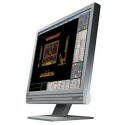
Figure 1: NANAO FlexScan L767-R LCD Monitor. This image shows the monitor from a slight angle, highlighting its slim bezel and adjustable stand.
2. תכונות
The FlexScan L767-R is designed for optimal visual performance and user convenience. Key features include:
- תצוגת צבעים מלאי חיים: Supports approximately 16.77 million full colors for impressive color vibrancy.
- FineContrast Function: Easily adjust brightness and gamma settings to match content (text, images) for optimal viewing.
- Dual Input Support: Equipped with both analog and digital input terminals for versatile connectivity.
- אודיו משולב: Features built-in speakers for audio output.
- מעמד ארגונומי: The stand allows for a 50mm vertical height adjustment, enhancing user comfort.
- Non-Glare Surface: The screen surface is non-glare, reducing reflections and eye strain.
3. התקנה
Follow these steps to set up your FlexScan L767-R monitor:
- פרק את הצג: הוציאו בזהירות את הצג ואת כל האביזרים מהאריזה.
- מקם את הצג: Place the monitor on a stable, flat surface. Ensure adequate ventilation around the monitor.
- חבר כבל וידאו:
- עֲבוּר חיבור אנלוגי: Connect the D-Sub (VGA) cable from your computer's video output to the analog input port on the monitor.
- עֲבוּר חיבור דיגיטלי: Connect the DVI cable from your computer's video output to the digital input port on the monitor.
- Connect Audio Cable (Optional): If you wish to use the built-in speakers, connect an audio cable from your computer's audio output to the audio input port on the monitor.
- חבר כבל חשמל: Plug the power cable into the monitor's power input, then plug the other end into a grounded electrical outlet.
- הפעלה: Press the power button on the monitor. Power on your computer. The monitor should display your computer's screen.
4. הפעלה
This section describes the basic operation of your FlexScan L767-R monitor.
4.1. FineContrast Function
The FineContrast function allows you to quickly switch between different display modes optimized for various content types. Use the dedicated buttons on the monitor's front panel to cycle through modes such as Text, Picture, Movie, and Custom. Each mode adjusts brightness, gamma, and color temperature for the best viewניסיון.
4.2. Stand Adjustment
The monitor stand offers vertical height adjustment. Gently push or pull the monitor panel up or down to adjust its height within the 50mm range. Ensure the monitor is stable after adjustment.
4.3. תפריט תצוגה על המסך (OSD).
Access the OSD menu using the control buttons on the front panel to fine-tune settings such as brightness, contrast, color balance, input selection, and more. Refer to the detailed OSD menu guide in the full manual for comprehensive options.
5. תחזוקה
תחזוקה נכונה מבטיחה את אורך החיים והביצועים של הצג שלך.
- ניקוי המסך: השתמש במטלית רכה נטולת מוך מעט דampened with water or a non-abrasive, monitor-specific cleaning solution. Do not spray liquid directly onto the screen.
- ניקוי ה-Casing: נגב את הצג גasinנגבו בעזרת מטלית רכה ויבשה. הימנעו משימוש בחומרי ניקוי חזקים או ממסים.
- אוורור: ודא שפתחי האוורור של הצג אינם חסומים כדי למנוע התחממות יתר.
- כיבוי: תמיד כבו את הצג ונתק אותו משקע החשמל לפני ניקויו או אם לא נעשה בו שימוש למשך תקופה ממושכת.
6. פתרון תקלות
אם נתקלת בבעיות עם הצג שלך, עיין בבעיות הנפוצות ובפתרונות הבאים:
- אין תמונה על המסך:
- בדוק אם הצג מופעל.
- Verify that the video cable is securely connected to both the monitor and the computer.
- Ensure the correct input source is selected on the monitor (Analog/Digital).
- התמונה מעוותת או מטושטשת:
- For analog connections, perform an auto-adjustment via the OSD menu.
- Check the display resolution settings on your computer. Ensure it matches the monitor's native resolution (1280x1024).
- אין קול מהרמקולים:
- Verify the audio cable is properly connected.
- בדוק את הגדרות עוצמת הקול הן במסך והן במחשב.
If the problem persists after trying these solutions, please contact EIZO customer support or refer to the comprehensive troubleshooting guide in the full product manual.
7. מפרטים
| תכונה | מִפרָט |
|---|---|
| מותג | EIZO |
| דֶגֶם | L767-R |
| גודל מסך | 19 אינץ' |
| הַחְלָטָה | 1280 x 1024 |
| תיאור משטח המסך | ללא סנוור |
| בְּהִירוּת | 250 תקליטורים/מ"ר |
| קצב רענון | 60 הרץ |
| טכנולוגיית תאורה אחורית | CCFL |
| יציאות כניסת HDMI | 0 |
| USB פונקציה | אַף לֹא אֶחָד |
| רמקול מובנה | כֵּן |
| פונקציית טלוויזיה | לֹא |
| 3D Display Support | לא נתמך |
| לוח מגע | לא נתמך |
| משקל פריט | 10 קילוגרם |
| מידות חבילה | 56 x 53.5 x 22.5 ס"מ |
8. אחריות ותמיכה
For detailed warranty information, please refer to the warranty card included with your product or visit the official EIZO webאתר. תנאי האחריות עשויים להשתנות בהתאם לאזור.
For technical support, product inquiries, or service requests, please contact EIZO customer support through their official channels. Keep your product model number (L767-R) and serial number ready when contacting support.
EIZO Official Webאֲתַר: www.eizo.com